
Most product demos fail before anyone opens the editor. They try to show the whole product, so the viewer sees a tour of menus instead of one useful result. A short demo is a promise and a proof: here is a problem, here is the product solving it, here is what to do next.
Plan that on paper first. The edit is the easy part.
Name the viewer and the outcome
Write two sentences before anything else:
- Who is watching? "A freelance designer who invoices three clients a month."
- What should they understand by the end? "Invoices can be created from a template without a spreadsheet."
If you cannot fit the outcome into one sentence, you have more than one video. Split it. A demo that explains invoices, expenses and taxes in ninety seconds explains none of them.
The same discipline applies to the call to action. One video asks for one thing: start a trial, book a call, open the pricing page. Everything else belongs in the post copy, not on the closing frame.
Choose the shortest path to the result
For a booking app, the story might be: a customer picks a time, confirms the appointment, and the booking appears in the calendar. That is a complete mini-story. You do not need to show login, settings, notifications or the help centre unless one of them is part of the promise.
Draw the path as four beats:
- The promise. What the viewer will be able to do.
- The action. The one flow that produces the result.
- The result. The visible change: the calendar entry, the exported file, the updated chart.
- The next step. Where to go and what to do there.
Every scene you add after that has to earn its place against the clock.
Record the source cleanly
Visual Ideas edits video; it does not record your screen, camera or microphone. Capture the flow first with the recorder you already use, then bring the file into the editor.
Before recording, create a demo account with fictional data. Close notifications and unrelated windows. Increase the interface scale if the text will be read on a phone, and record only the part of the screen that matters.
Keep the raw clip short — thirty to forty seconds is plenty. Do not narrate while clicking. You will add the explanation as captions, where it survives being watched with the sound off.
If the product is a website, a full-page screenshot can be better than a recording. It scrolls from top to bottom over one slide, with a short hold at each end.
Put the recording in context
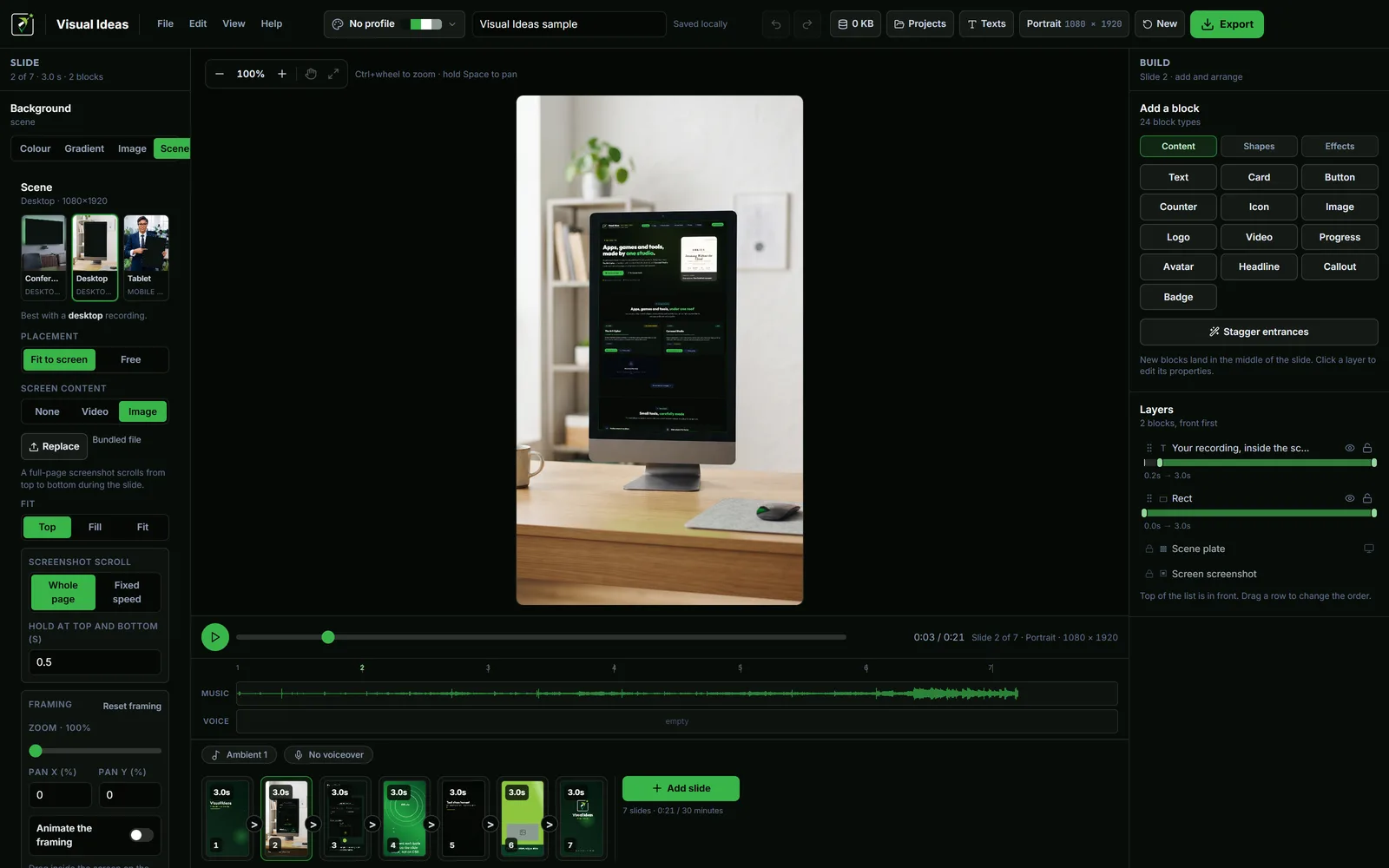
A screen recording floating on a background looks like a slide. The same recording inside a device scene looks like a product. Visual Ideas includes ready-made conference, desktop and tablet scenes, and the device scene guide explains how the recording is fitted into the screen cut-out.
Use one device for the whole demo. Changing from laptop to phone to tablet in the same clip makes the product feel like several products.
Write the words as instructions
A caption should tell the viewer where to look, not describe the interface. "Filter by client" is better than "The client filter is in the top right". The viewer can already see the position.
Keep captions to one line where possible. If a line needs more than two lines at phone size, it is a paragraph and belongs in a different scene. Readable Reels text covers contrast, placement and safe areas.
Leave each caption on screen after it finishes animating. A line of five or six words needs about a second of stillness; a longer line needs more. The animation timing guide has a worked example.
Review before export
Watch the whole video at normal speed, then watch it again at phone size. Check four things:
- Does the opening match what the video actually shows?
- Can you read every caption without pausing?
- Is the result visible long enough to be understood?
- Does the closing frame ask for one clear action?
Also check the rights for every image, recording, logo and music track. A demo made with a customer's screen or an unlicensed song is a support problem waiting to happen.
Export for the destination
Choose the frame before you lay out the slides: portrait for Reels, TikTok and Shorts; landscape for YouTube, a website or a desk-based LinkedIn audience; square or 3:4 when one file has to survive several feeds.
The export sheet offers platform presets, 1080p or 720p, and 30, 25 or 24 fps. The default of 1080p at 30 fps is right for most demos. The export settings guide explains when to change it.
Keep the next one cheap
Save the finished project folder. It already contains the layout, the captions and the device scene, so the next demo only needs a new recording and a new promise. That is how a one-off demo becomes a series without a production crew.
Editing and previewing in Visual Ideas are free. The app includes ten saved exports per calendar month, and export packs are there if a launch month needs more.

Cristian Istrate
Independent developer behind Visual Ideas, a video editor for Windows. I write these notes when a problem keeps coming back in support email. Get in touch.