
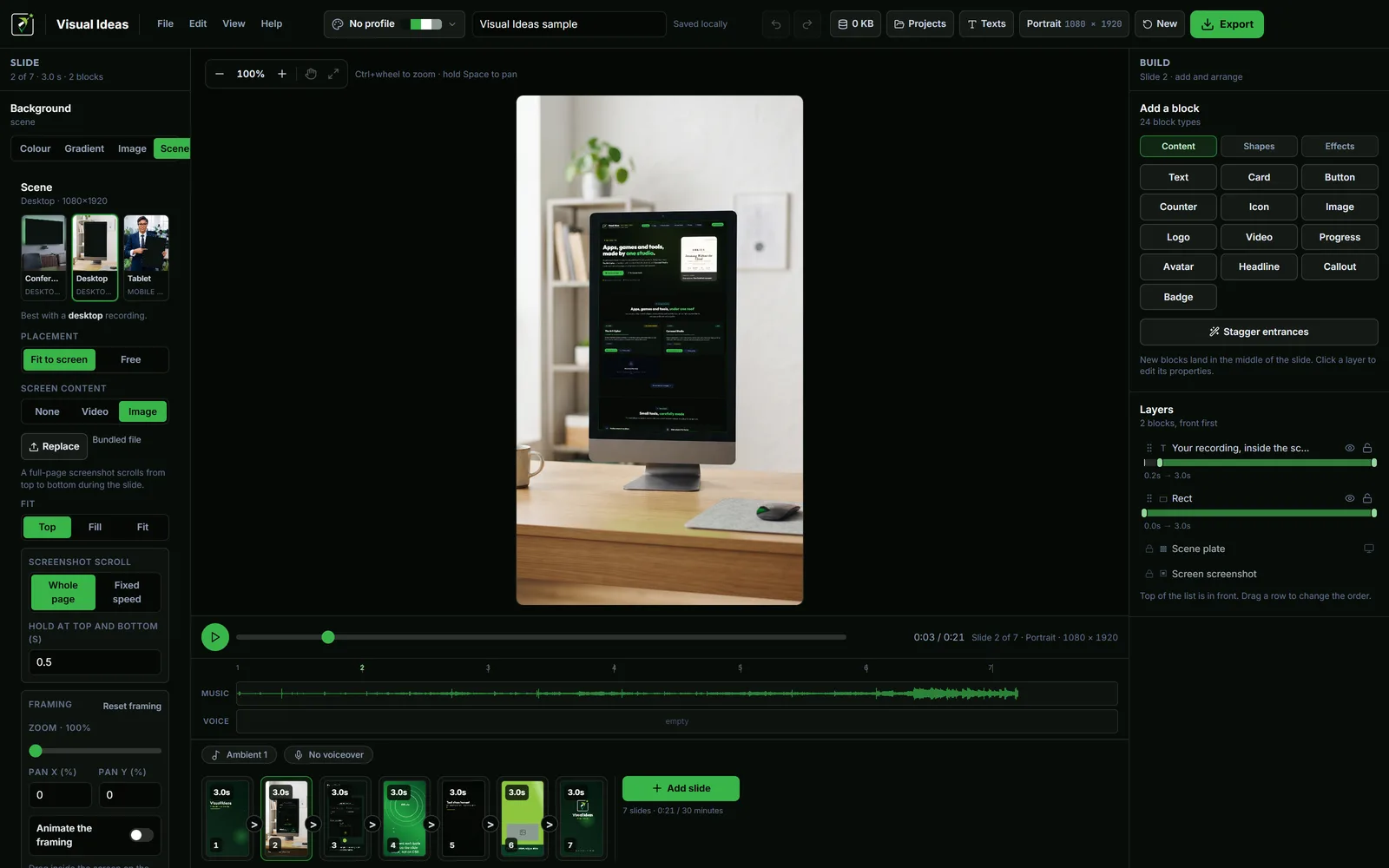
A raw screen recording is accurate and strangely hard to watch. The viewer sees a rectangle of interface floating on a background, with no sense of the device, the scale or the situation. A device scene fixes that in one step: the recording is placed inside a monitor, a tablet or a room, and the bezel gives it context.
Visual Ideas treats a device scene as a slide background. The screen is a hole in a photograph, and the recording is fitted into that hole with the correct perspective.
What the app provides
Visual Ideas includes ready-made conference, desktop and tablet scenes in portrait and landscape. Each scene is a photograph with the device screen cut out to transparency. The recording or scrolling screenshot is drawn behind the bezel, so the device frame stays in front.
That means the result is not a flat picture of a monitor with a video pasted on top. It is a recording placed into the screen, including the angle of the photograph. A scene photographed from the side still looks like a screen photographed from the side.
The screen corners are stored with the scene, so there is nothing to align. The built-in set is the set: the app does not include a laptop or phone frame. If the product needs one of those, use a plain video block with rounded corners and a shadow, or use the tablet scene for a mobile interface. A separate mockup image is a job for a different tool, not something to promise here.
Choose the device that matches the product
The device is part of the message.
- A desktop scene suits a web app, a dashboard, a spreadsheet or any product used at a desk.
- A tablet scene suits a mobile interface where the screen is the point and a desktop frame would shrink the detail.
- A conference scene suits a presentation, a stage demo or a product shown to an audience.
Use one device for the whole video. Switching from desktop to tablet to conference in the same clip makes the product feel unstable, even if each shot is technically fine.
Prepare the capture at a readable scale
A device scene does not make small text bigger. If the recording is a full desktop at 100% zoom with 11px labels, the labels will be small inside the scene too.
Before recording:
- Increase the app or browser zoom.
- Close sidebars and unrelated panels.
- Record the area that contains the action, not the whole monitor.
- Use a clean demo account with fictional data.
If the interface is wide, a landscape scene gives the recording more room. If the product is mobile, record at phone size and use a portrait scene. The tablet plate is closer to a phone than the desktop plate is.
Place the recording and check the fit
On a scene slide, choose the scene, then set the screen content to a video or an image. The app fits the content to the screen cut-out. For a video, you can trim, change speed, loop or freeze at the end. For a scrolling screenshot, the page moves from top to bottom with a hold at each end.
Check three things after placement:
- The recording fills the screen without visible gaps at the corners.
- The interface text is still readable at the final output size.
- The action is not hidden behind the bezel or a reflection in the photograph.
If the text is unreadable, re-record at a larger scale or use a tighter crop. Do not add a magnifying callout over the screen; it will fight the device.
Use framing inside the screen
The recording can be zoomed and panned inside the device screen. That is useful when the action happens in one corner of a large interface: set a start view and an end view, and the app eases between them.
Keep the zoom modest. A 200% push-in on a 1080-wide screen will make the text larger but also softer. If the source is a compressed screen recording, the loss is visible.
For a scrolling screenshot, framing stacks on top of the scroll, so you can show a specific section without losing the sense of the page.
Put the label outside the device
A caption over the screen competes with the interface. Place the label beside the device, in the space the scene photograph leaves. On a portrait scene, that may be above or below the device; on a landscape scene, it is often to one side.
Keep the label short and consistent. "Filter by client" is enough. The viewer can see the interface; the label tells them what to notice.
The device scene feature page lists the placement and framing controls.
Keep the scene still
A device scene already has depth and perspective. Adding a floating, rotating or pulsing animation around it usually makes the frame busier without adding meaning.
A simple entrance — a fade or a small slide — is enough. Let the recording be the motion.
Review on the destination screen
Export the video and watch it on a phone. The device scene may look spacious on a desktop monitor and cramped on a phone, especially in portrait. If the interface disappears, shorten the scene or switch to a closer crop.
A device scene is not decoration. It is a way to show the product in the place where it is used, at a scale where the viewer can still read it. Get those two things right and the rest is detail.
For the planning side, how to make a software demo from a screen recording covers the task, the capture and the story around the scene.

Cristian Istrate
Independent developer behind Visual Ideas, a video editor for Windows. I write these notes when a problem keeps coming back in support email. Get in touch.