
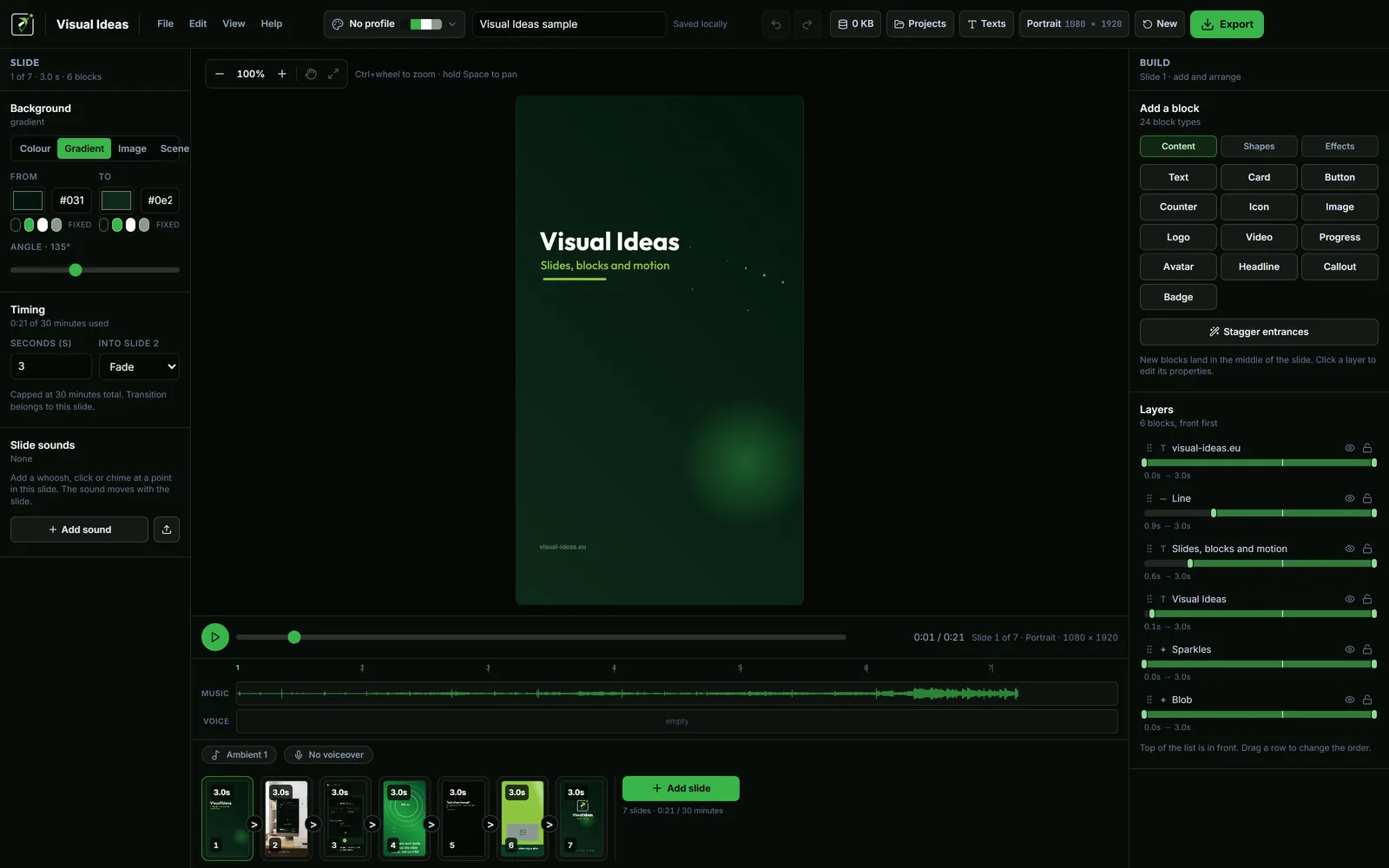
A timeline is a ruler with layers. It is powerful when a video has many simultaneous tracks: several camera angles, background music, dialogue, effects and titles that all need frame-level alignment.
A short explainer rarely needs that. It needs a sequence of moments: this slide, then that slide, each with a few elements and a clear duration. Slide-based editing treats those moments as the unit, which makes the structure easier to see.
What a slide is
A slide is a self-contained frame with a background, a set of blocks and a duration. In Visual Ideas, the blocks can be text, pictures, icons, shapes, video, a card, a button, a counter, a progress bar, an avatar, a headline, a callout or an effect.
The slide owns its timing. A title card can be two seconds; a demonstration can be six. The transition into the next slide belongs to the slide before it.
That is the whole model. There is no separate track for titles, no layer stack that has to be kept in sync, and no need to position a clip by dragging its edge along a ruler.
Why it suits short videos
Short videos are usually built from a small number of discrete moments. A product demo has a promise, a flow and a result. A tutorial has steps. A social clip has a hook, a point and a call to action.
Those moments map naturally to slides. Each one can be edited without disturbing the others, and the order can be changed by moving a card.
The model also makes revision cheap. If the third step changes, you edit the third slide. You do not hunt for a clip on a timeline or re-time a chain of keyframes.
The trade-off
Slide-based editing is not a substitute for a timeline editor when the work is genuinely layered. If you need multiple camera angles, precise audio ducking by the word, colour grading, or a long interview with cutaways, a dedicated timeline tool is the better choice.
Visual Ideas is honest about that. It is built for short, structured videos: demos, tutorials, social clips, product stories, presentations. It has one music track, one voiceover track and per-slide sound effects, not an unlimited multitrack mixer. It does not record the screen, camera or microphone, and it does not try to be a full production suite.
Choosing the right tool is part of the skill. A slide editor removes friction for the videos that fit the model; it does not remove the need for a timeline when the model does not fit.
Build a video in five steps
- Write the sequence. One line per slide: promise, step one, step two, result, next step.
- Choose the frame. Portrait, square, 3:4 or landscape, before you place anything.
- Add one idea per slide. A title, a picture, a short caption. Resist the urge to fill every slide with everything.
- Set the timing. Long enough to read, with the entrance counted.
- Preview the whole sequence. Watch it at normal speed, then on a phone.
That is enough for a first video. The polish comes later.
Use the slide list as an outline
The slide strip at the bottom of the editor is a visual outline. If the sequence does not make sense as a list of thumbnails, it will not make sense as a video.
A useful check: read only the slide titles and captions, in order. If they tell a coherent story, the structure is sound. If they jump, the problem is the outline, not the animation.
Keep a reusable project
The real speed advantage of slides is reuse. A project folder holds the layout, the palette, the logo and the timing. Duplicate it, swap the content, and the next video starts from a finished structure.
Visual Ideas stores a project as a folder with project.json and an assets/ folder. File → Backup writes an archive; File → Restore brings projects back. The branding guide covers reusable palettes and logos, and the weekly workflow covers the production routine.
Common beginner mistakes
- Too much on one slide. If it needs a paragraph, split it.
- Uniform slide lengths. A title and a demonstration do not need the same time.
- Animation as content. A slow entrance eats reading time.
- No frame decision. Choosing portrait after building landscape means rebuilding.
- No review on a phone. The laptop flatters everything.
None of these is unique to slide editing, but the model makes them easier to see and fix.
Try it on one video
Pick a video you already need to make: a product update, a how-it-works clip, a customer question. Write the five-line sequence, choose the frame, and build it as five slides. Do not add effects until the sequence works without them.
That is the beginner's path: structure first, timing second, polish last. The product demo planning guide applies the same discipline to a demo, and the first video walkthrough shows what the app can do before you install it.

Cristian Istrate
Independent developer behind Visual Ideas, a video editor for Windows. I write these notes when a problem keeps coming back in support email. Get in touch.