
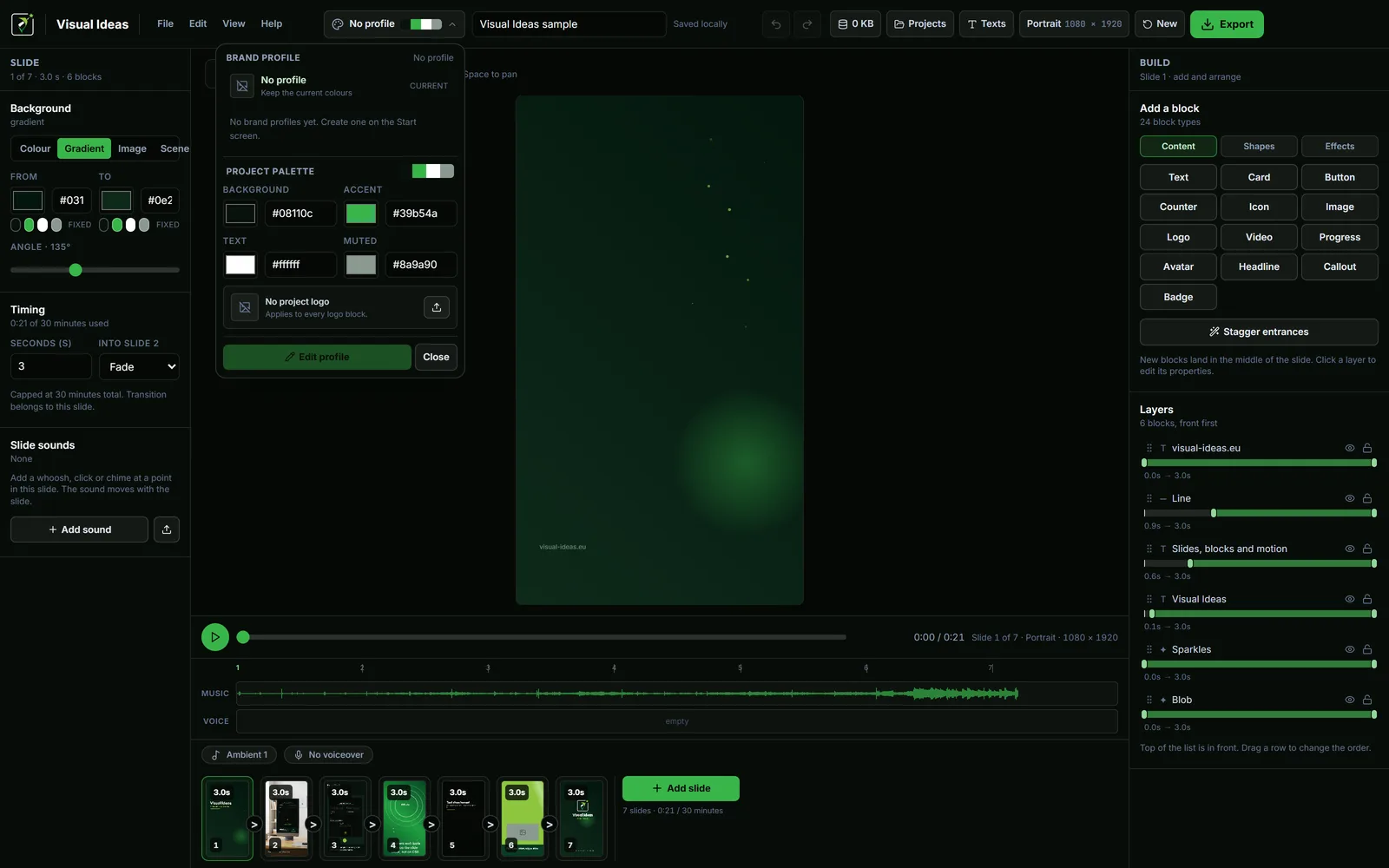
Brand consistency in video is not a logo stamped on every frame. It is a small set of decisions made once — colours, type, logo placement, spacing — and then repeated without thinking.
The value is recognition. A viewer who has seen three of your videos should know the fourth is yours before the logo appears. The cost of inconsistency is subtler: every video feels like it came from a different place, and the audience has to re-learn how to read it.
Start with four colours, not a brand book
You need fewer colours than a brand guideline suggests. For video, four roles are enough:
- Background — the canvas colour.
- Accent — the one colour that marks emphasis, buttons and highlights.
- Text — the main readable colour.
- Muted — secondary text, captions and dividers.
Visual Ideas stores exactly these four in a project's palette, and every colour field can use one of them as a token. Change the accent once and every block using it repaints. That is the difference between a palette and a folder of hex codes.
Pick colours that survive video compression. A very dark background with a very dark accent turns to mud. A bright accent on white needs enough weight in the type to stay legible. Check the combination on a phone, not only in the colour picker.
Choose one type style and one hierarchy
Use one family for headings and one for body text, or one family with two weights. Decide the sizes once:
- A title size for the main line.
- A subtitle size for the supporting line.
- A caption size for details.
Then keep the hierarchy the same across videos. If the title is always the largest element in the top third, the viewer knows where to look. If every video invents a new arrangement, the recognition is lost.
Avoid changing type size to fit a layout. Change the wording or the layout instead. A title that has been shrunk to fit is a title that has stopped doing its job.
Put the logo in one place
A logo works best as a small, repeatable cue. Choose a corner or a position in the closing frame and keep it there. On a busy photo, use a version with enough contrast or put it on a small panel.
The app's logo block can use the project logo, and the position is part of the slide layout. If the logo sits bottom-right on the title card, it should sit bottom-right on the closing card too — unless the composition genuinely needs otherwise.
Do not let the logo cover the subject, a caption or the platform's interface. A logo that is always half-hidden is not building recognition.
Save the decisions as a brand profile
A brand profile in Visual Ideas stores the palette and logo, and a new project can copy them in one step. That removes the most common source of drift: opening a new project and re-picking colours from memory.
A profile is a reference, not a lock. Editing a profile later does not change videos that already copied it, so old projects keep the look they were made with. That is the right behaviour for a series: new work picks up the new brand, old work stays stable.
If several people make videos, share the profile (or the palette values) rather than a screenshot. A screenshot introduces a new shade every time it is sampled.
Keep spacing consistent
Consistency is not only colour. The distance from the edge, the gap between title and caption, and the size of the safe margin all contribute.
Pick a margin and keep it. On a portrait video, keep text inside the middle band so the platform interface does not cover it. On a landscape video, leave room for the player controls at the bottom.
A simple grid — title in the top third, visual in the middle, caption in the bottom third — is enough. The grid can be invisible; the viewer feels it as calm.
Test against real footage
A palette that looks good on a white artboard can fail on a photo. Put the colours over the kind of footage you actually use: a dark interior, a bright product shot, a screen recording. Check contrast in each case.
If the accent disappears on dark footage, use a lighter tint for those frames, or put the text on a panel. The app's fill opacity controls let a panel be strong enough to read without becoming a solid block.
Review a series, not a single video
Open three finished videos side by side. Do they look like they belong together? Check:
- The same accent colour.
- The same title position.
- The same logo treatment.
- The same type hierarchy.
- The same margin.
If one is the odd one out, fix the layout rather than the colours. Consistency is structural.
The weekly workflow guide shows how a brand profile fits into a repeatable production routine. The call-to-action guide covers the closing frame, which is where the logo usually lives.
A brand is not a decoration applied at the end. It is the set of decisions that lets a viewer recognise you before they read the name.

Cristian Istrate
Independent developer behind Visual Ideas, a video editor for Windows. I write these notes when a problem keeps coming back in support email. Get in touch.