
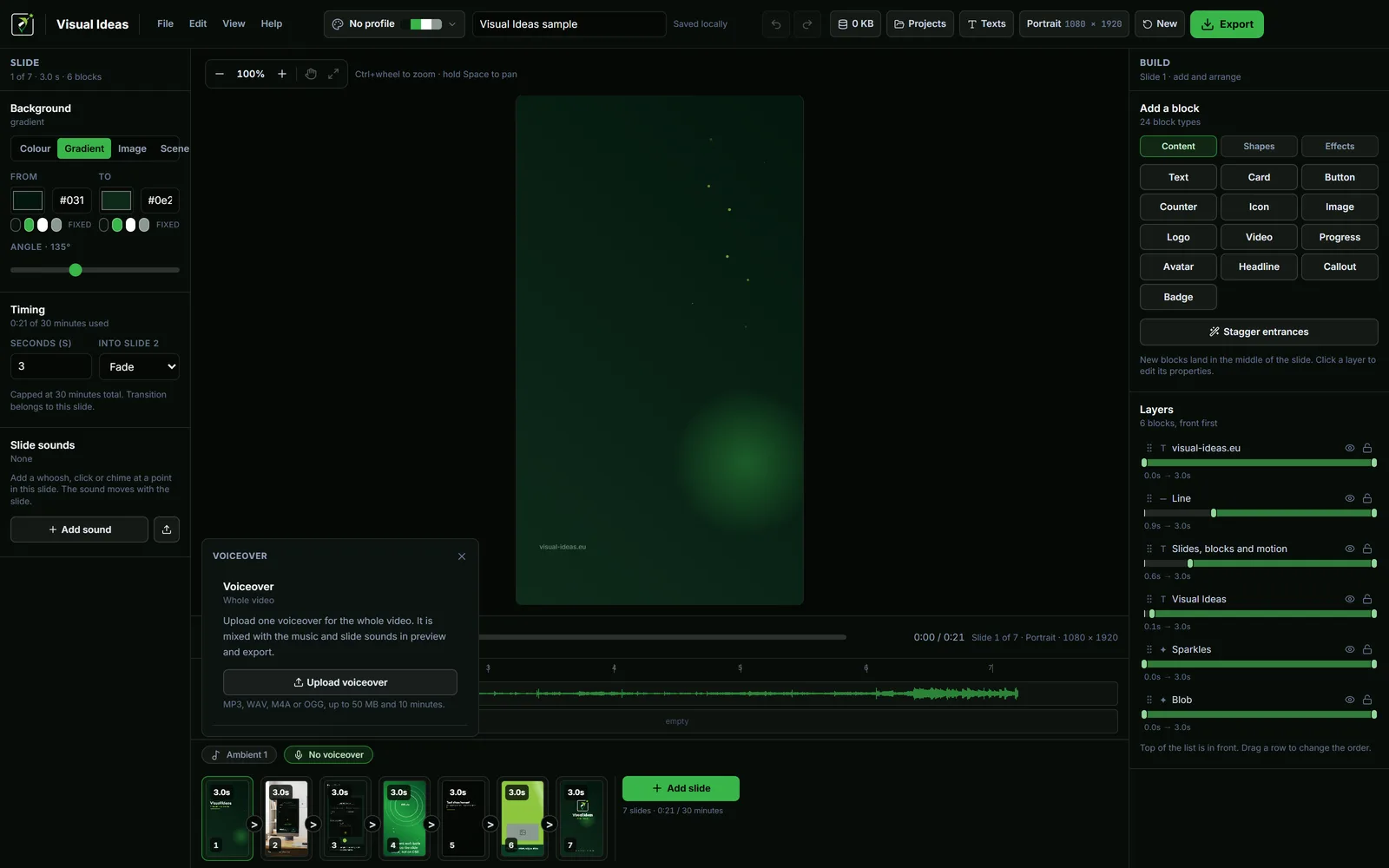
A voiceover is the most direct way to explain a video. It is also the fastest way to make one unwatchable: a quiet recording in a noisy room, music that competes with the words, or a mix that only sounds right on headphones.
The good news is that the fix is mostly three decisions — record cleanly, set the voice level first, then bring the music underneath it.
Record the voice before you edit
Visual Ideas does not record audio. Record the voiceover in whatever app you use, then upload the finished file into the project. That separation is useful: you can re-record a sentence without touching the video, and the editor stays focused on the picture.
Record in the quietest room you have, close enough to the microphone to avoid room echo. A phone with a decent microphone and a soft-furnished room is usually better than a laptop microphone in a kitchen.
Record the whole script in one session if you can. The tone and distance stay consistent, and you avoid audible joins between slides. If you make a mistake, re-record the paragraph, not the word.
Use MP3, WAV, M4A or OGG. The app accepts files up to 50 MB and 10 minutes for the voiceover.
Set the voice first, then the music
The most common mixing mistake is setting the music at a comfortable level and then trying to push the voice over it. The result is a loud mix where the words still lose.
Work in this order:
- Set the voice at a level where every word is clear on headphones.
- Add the music at a level where it supports the voice but does not compete.
- Turn on ducking if the music still fights the speech.
- Check the result on a phone speaker.
The app has a volume control for the voiceover and a separate one for the music. Keep the voice as the reference; the music moves around it.
Use ducking instead of a quiet track
Ducking lowers the music while the voice is speaking and brings it back between sentences. In Visual Ideas it is a toggle on the voiceover panel. With it on, the ambient track drops to about 30 percent under the voice and returns with short fades.
That is usually better than setting the music very low for the entire video. A quiet track under speech often disappears entirely on a phone, and a track that is audible in the gaps gives the video energy.
Turn ducking off when the music is the main event and the voice is occasional. Turn it on for tutorials, demos and anything where a sentence must be understood on the first listen.
The music and voiceover guide explains the full routine, including slide sounds.
Keep the music instrumental under speech
A song with lyrics competes with the voice for the same part of the listener's attention. The viewer may follow the song instead of the explanation, especially if the lyrics are in a language they understand.
Instrumental ambient tracks are the safe choice. If you use a song with words, check that the vocal sits away from the narration and that the licence covers your use. The music rights guide covers the licence question.
Check the mix on two systems
Headphones reveal detail; a phone speaker reveals whether the voice survives. Check both.
On headphones, listen for:
- Words that are unclear or too quiet.
- Music that masks consonants.
- Clicks, pops or room noise between sentences.
On a phone speaker at about half volume, listen for:
- A voice that disappears under the music.
- A track that turns to mud in the low end.
- A level that makes you reach for the volume control.
If the voice disappears on the phone, raise the voice rather than lowering the music. If the music disappears, that is usually acceptable.
Leave room for silence
Not every second needs sound. A pause after an important line gives the viewer time to absorb it, and a silent slide can make the next sound more effective.
A video with no music, no voiceover and no slide sounds exports with no audio track at all, which is useful when a platform should treat the file as music-free. If you want silence, choose it deliberately.
Review the finished file, not the preview
The editor preview and the MP4 use the same mixer, so they should match. Still, play the exported file once on the device where it will be watched. Check that the voice starts when the relevant slide appears, that the music fades rather than cuts, and that no sound effect lands late.
If something is wrong, fix the timing in the project and export again. A cancelled or failed export does not use an export credit; only a finished MP4 counts.
A clear mix is not a matter of taste. It is the result of putting the voice first and letting everything else support it.

Cristian Istrate
Independent developer behind Visual Ideas, a video editor for Windows. I write these notes when a problem keeps coming back in support email. Get in touch.