
A track can sound perfect and still be unusable. Before you build an edit around it, find out who owns it, what the licence allows and whether that licence covers the place you are about to publish.
This is the boring part of video production, and it is the part that causes takedowns, muted posts and invoices months later.
Start with the job the music has to do
Music is not a mood sticker. It has a function in the video:
- Pace — it sets how fast the edit feels.
- Continuity — it ties separate scenes into one piece.
- Emphasis — it lifts a reveal or softens a transition.
- Cover — it fills silence under a voiceover or a quiet room.
Decide which function matters before you audition tracks. A calm product video needs continuity, not a drop. A ten-second teaser needs pace. A tutorial with narration needs cover, and the music should be almost invisible.
If you cannot name the function, the track is decoration and the video will probably be better without it.
Match tempo to the edit, not to taste
A track at 120 BPM has a beat every half second. If your slides change every three seconds, the music and the cuts will feel unrelated.
Two simple approaches:
- Cut on the beat. Place slide changes or key animations on the beat so the video feels deliberate.
- Stay out of the way. Choose a track with a steady, unobtrusive pulse and let the narration or the visuals carry the rhythm.
The second is safer for tutorials and demos. The first works for product teasers and event promos.
Avoid tracks with a strong vocal if there is any speech. The voice and the lyrics compete for the same attention, and the viewer will follow the one with words they understand.
Check the licence before the edit
A licence is a set of permissions, not a vibe. Check four things:
- Commercial use — is the video promoting a business, a product or a paid service?
- Platform — does the licence cover YouTube, Instagram, TikTok, LinkedIn and the other places you will post?
- Account type — some platform music libraries allow personal accounts but not business accounts, ads or sponsored posts.
- Credit — does the licence require attribution, and where?
Keep a note of the track, the source, the licence and the date you checked it. If a claim arrives later, that note is the difference between a quick answer and a scramble.
Platform music libraries are convenient, but their terms can change and can differ between personal and business use. Do not assume a track available in the app is licensed for a brand account.
Know what the app provides
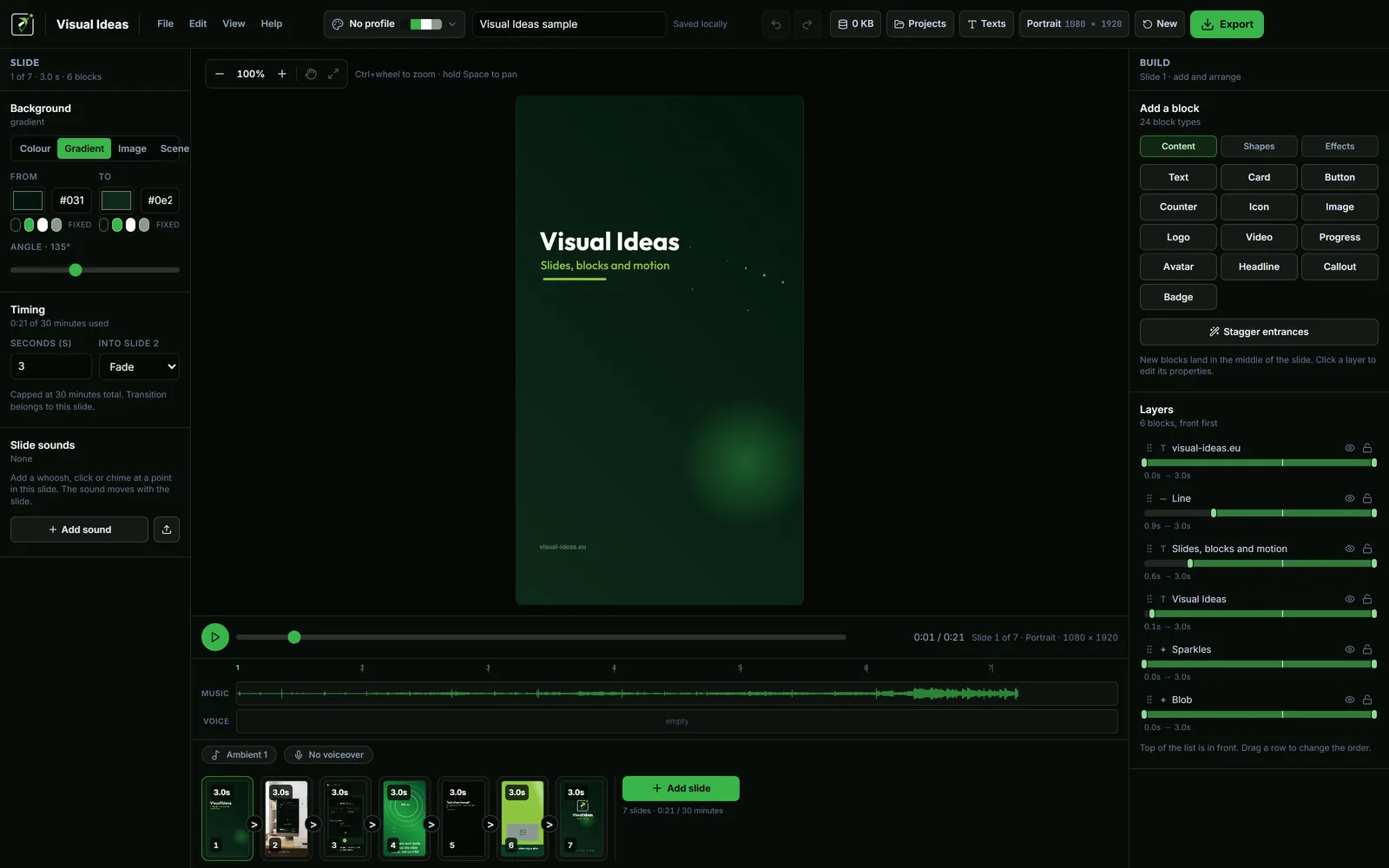
Visual Ideas ships with two ambient tracks, Ambient 1 and Ambient 2, and a small CC0 sound-effects library. The ambient tracks can be used inside videos made with the app, including commercial videos, under the app's terms. They cannot be sold or published as stand-alone audio files.
That is useful for a quick internal video or a first social post, but it is not a substitute for checking the licence of music you bring yourself. The app does not include a music library with per-track commercial clearances.
The built-in sound effects are CC0, which is the most permissive option: they can be used in the video without attribution. The file-by-file credits are in the app's Licenses & credits page.
Use one track, not a playlist
A short video with three different songs feels like three videos stapled together. Use one track for the whole piece, or one track with a single deliberate change at a section boundary.
Visual Ideas has one music track per project, with a start offset, volume and fades. That constraint is a feature: it forces a single musical bed instead of a collage.
If the video needs a change, cut it at a slide boundary and keep the same track. If it needs a second song, it probably needs a second video.
Keep the mix simple
Music under speech should sit below the voice, not beside it. Use the voiceover volume as the reference, then bring the music down until the words are clear. Turn on ducking if the track still competes; it drops the music to about 30 percent while the voice plays.
For a music-only video, the track can be louder, but check the result on a phone speaker. A mix that sounds rich on headphones can turn to mud on a small speaker. The voiceover and music guide covers the levels.
Fade in and out
A track that starts mid-note sounds like an accident. Add a short fade in at the start and a fade out at the end. The app's music settings include both.
For a loop, choose a start point where the track can repeat without an obvious jump. A four-bar phrase is usually safer than a random second.
Review before publishing
Play the finished video once on the platform where it will live. Check:
- The music does not mask the words.
- The track starts and ends cleanly.
- The licence covers this account and this use.
- The sound effects are not louder than the music.
If the track is wrong, change it before export. Replacing music after publishing means re-exporting, re-uploading and losing the post's existing engagement.
The music and voiceover guide covers the full audio routine, and the export guide explains the file settings.

Cristian Istrate
Independent developer behind Visual Ideas, a video editor for Windows. I write these notes when a problem keeps coming back in support email. Get in touch.