
Export is not the last step. It is the step where the frame, the text size and the audio mix meet the place the video will be watched. A file can be technically valid and still be wrong for the feed.
The good news is that most of the decision is made before the export sheet: the project's shape and the layout. The sheet only chooses how the frames are encoded.
Start with the project shape
Visual Ideas offers four project sizes:
- 9:16 portrait, 1080 × 1920.
- 1:1 square, 1080 × 1080.
- 3:4 portrait, 1080 × 1440.
- 16:9 landscape, 1920 × 1080.
The shape is fixed when the project starts. That is deliberate: changing it later means repositioning every block, not just changing a number. Choose the destination's shape before you design.
For social video, the short version is:
- Reels, TikTok, Shorts: portrait.
- Instagram feed: 4:5, 3:4 or square.
- YouTube long-form: landscape.
- LinkedIn: landscape or square for a desk audience; portrait for phone-first.
- Website: landscape.
The aspect ratio guide explains the trade-offs and safe areas.
Understand the quality presets
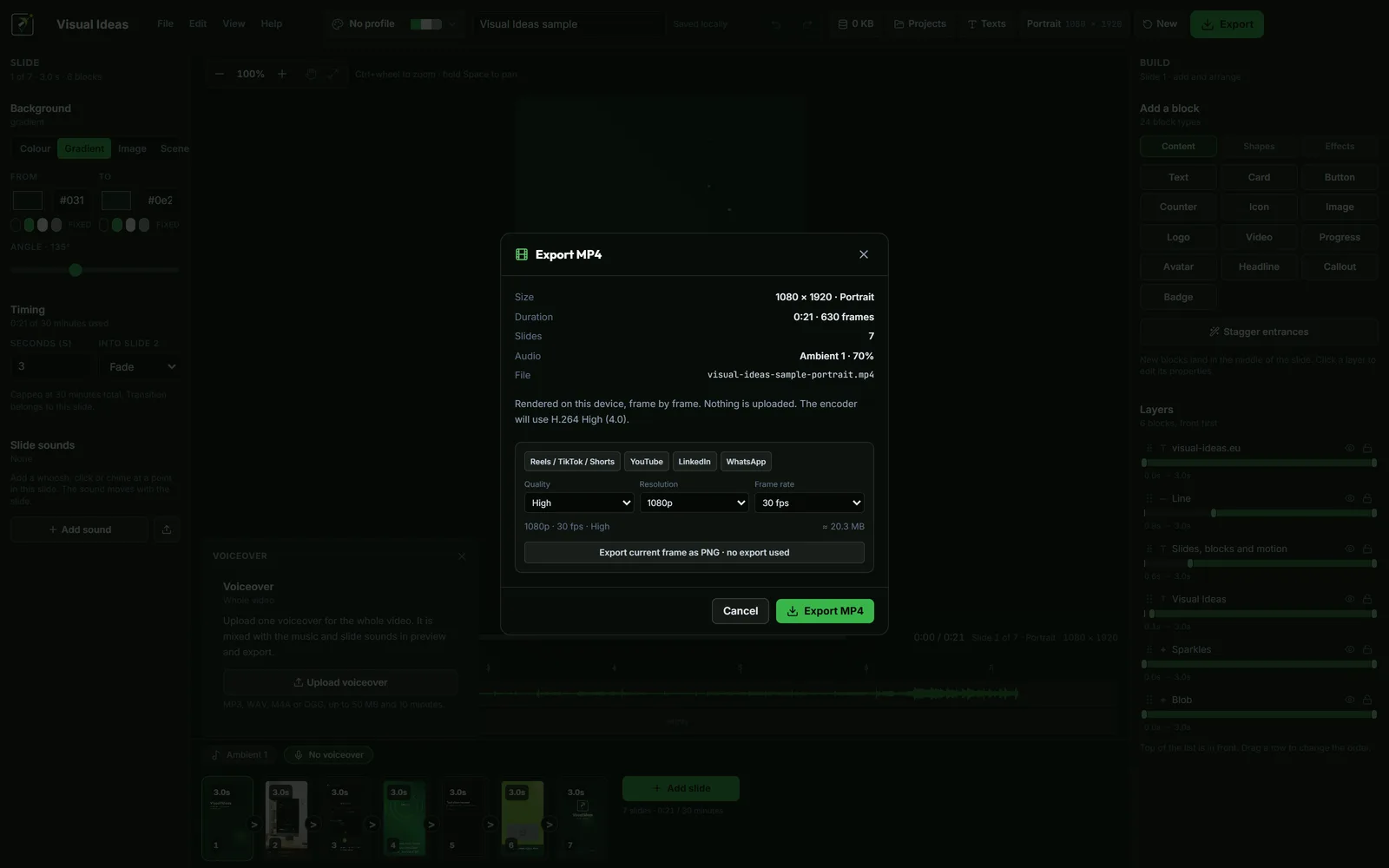
The export sheet offers three quality presets: High, Standard and Small file. Each one sets a bitrate. High is the default and the right choice for a master file or a platform that re-encodes heavily. Standard is a good balance for a quick social upload. Small file is for a place where size matters more than detail, such as a preview or a WhatsApp share.
The sheet also shows an estimated file size before you start. Use it: a long High-quality export can be large, and some platforms have upload limits or slow connections.
Bitrate is not the same as resolution. A 1080p High file and a 720p High file have different dimensions and different sizes, and a 720p file can look sharper than a poorly encoded 1080p one.
Choose 1080p or 720p
1080p is the safe default for a video that will be watched on a phone or a laptop. Most platforms re-encode the upload anyway, so a clean 1080p source is a good starting point.
720p is useful when:
- The source footage is lower resolution.
- The file needs to be small, for WhatsApp or a slow connection.
- The video is a draft or a preview.
A 720p export is scaled from the project size before encoding. It does not restore detail that was never in the source. If the source is a 720p screen recording, exporting at 1080p will not make the interface sharper.
Choose the frame rate
The app offers 30, 25 and 24 frames per second.
- 30 fps is the default for screen recordings, motion and social video. It is smooth without feeling cinematic.
- 25 fps is the European broadcast rate. It is fine for talking-head footage and some presentations.
- 24 fps is the film look. Use it deliberately, not by accident.
Changing the frame rate does not change the speed of the video; it changes how many frames represent each second. A 30 fps screen recording exported at 24 fps may show slightly less smooth motion.
If the project mixes screen recordings and stills, 30 fps is the safest choice.
Use the platform shortcuts carefully
The export sheet has shortcuts for Reels/TikTok/Shorts, YouTube, LinkedIn and WhatsApp. They set a sensible quality, resolution and frame rate for that destination, and you can adjust them afterwards.
The shortcuts do not change the project's shape. If the project is landscape and you pick the Reels preset, you still have a landscape file. Fix the shape in the project, not in the export sheet.
The shortcuts are a starting point, not a guarantee. Platform specifications change, and a platform may crop or re-encode differently in different placements. Verify the current guidance when exact compliance matters.
Export the current frame as a PNG
Sometimes you need a still, not a video. The export sheet can save the current preview frame as a PNG.
That is useful for a thumbnail, a slide in a blog post, a client approval or a quick check of the layout. It does not use an export credit, so you can take as many stills as you need.
What the file contains
The MP4 uses H.264 video and AAC audio. If the project has music, a voiceover or slide sounds, the file carries an audio track mixed exactly as the preview heard it. If the project has no audio at all, the file has no audio track, which is what some platforms look for when deciding a video is music-free.
The app exports on your PC, frame by frame. Nothing is uploaded to a server, and the editor can work offline. Long exports can run in the background while you keep editing; the top bar shows progress.
Review the saved file
Before uploading, play the saved MP4 once. Check:
- The frame is the shape you intended.
- The text is readable at phone size.
- The audio starts and ends cleanly.
- The duration matches the slides.
- The file size is sensible for the destination.
If you find a problem, fix the project and export again. A cancelled or failed export does not use a credit; only a finished MP4 does. The export credits guide explains the allowance.
Keep the master
Save the project folder alongside the MP4. If the platform changes its recommended settings or you need a 720p version later, you can export again from the same project rather than rebuilding.
A good export is not the highest number on every setting. It is the file that matches the feed, the source and the viewer's screen.

Cristian Istrate
Independent developer behind Visual Ideas, a video editor for Windows. I write these notes when a problem keeps coming back in support email. Get in touch.