
Sound is the part of a short video that people notice only when it is wrong. A track that is too loud, a voice that is too quiet, a sound effect that lands half a second after the thing it describes — each one makes the video feel amateur without the viewer being able to say why.
The fix is not a mixing desk. It is four decisions: what the music is doing, where the voice sits, how the two relate, and what else makes a noise.
One music bed, under everything
Start with one instrumental track for the whole video. One, not several. A second track in the middle of a thirty-second clip is a distraction, and it makes the volume impossible to keep consistent.
Visual Ideas ships with two ambient tracks, and you can upload your own file if you have the rights to it. Set the volume once, set where the track starts, and add a short fade in and a fade out. The fade matters more than it sounds: a track that begins mid-note signals that the video started by accident.
Keep the music instrumental if there is any speech. A song with words competes with the voice for the same part of the listener's attention, and the listener will follow the song. The music, voiceover and sound-effects feature page has the full list of audio controls.
One voiceover, uploaded
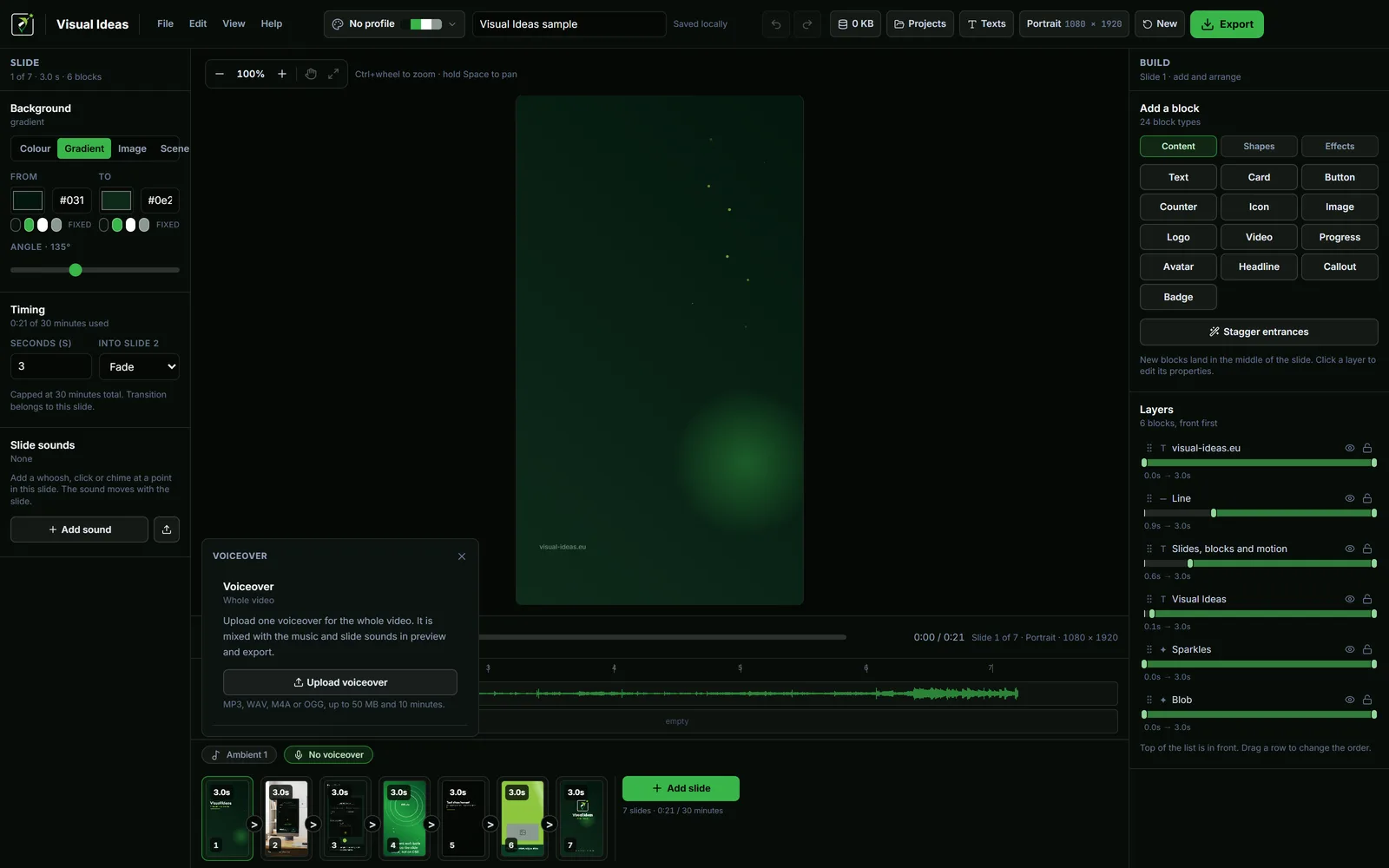
A voiceover is one track for the whole video, not a clip per slide. You record it in whatever app you use — Visual Ideas does not record audio itself — and upload the finished file. Then you set three things: the volume, where it starts on the timeline, and whether it should duck the music.
Recording it in one go is better than recording per slide. The voice keeps the same tone and distance, and you avoid a dozen small joins where the room tone changes. If you make a mistake, re-record the paragraph, not the sentence.
Write the script slide by slide, one sentence per idea. That is the natural rhythm of this kind of video, and it makes the edit trivial: if a slide changes, one sentence changes with it.
Ducking, explained
Ducking is what a radio station does when the presenter speaks: the music drops, the voice comes through, the music returns. In a video editor it is usually a volume curve drawn by hand. In Visual Ideas it is a toggle.
With ducking on, the ambient track drops to about 30% while the voiceover is playing and comes back afterwards with short fades. You do not automate anything, and you do not need to know what a compressor is. The app mixes the same way in the preview and in the exported MP4, so what you hear is what the file contains.
The effect is not just volume. It is attention: the ear treats the louder element as the important one. Ducking tells the listener, continuously, which one that is.
Turn it off if the music is meant to carry the video and the voice is only occasional. Leave it on for demos, tutorials and anything where a sentence has to be understood on the first listen.
Level, not loudness
There is no meter to watch, so use your ears and two passes.
First, listen at a comfortable volume on headphones. Can you hear every word without straining? Is the music audible but not competing? If you have to turn it up for the voice and down for the music, the balance is wrong.
Second, listen on a phone speaker at about half volume. This is how most people will hear it, and it is unforgiving: quiet voices disappear, bass turns to mud, and a track that sounded subtle on headphones can vanish entirely.
If the voice disappears on the phone, raise the voice rather than lowering the music. If the music disappears, that is usually fine.
Slide sounds
Short effects belong to a slide, not to a separate audio timeline. A click when a button is pressed, a whoosh on a transition, a soft pop when a number counts up. Each has a delay, a volume and an option to stop at the end of the slide, so it moves with the scene if you reorder the video.
The app ships with a small library of CC0 sounds — transitions, interface clicks, emphasis hits and ticks — and two defaults: a confetti burst adds a pop, and a counter adds a tick. Both can be changed or removed.
The rule for effects is the same as for decoration: two or three well-placed ones in a thirty-second video do more than a constant stream. If every slide clicks, none of them means anything.
Silence is a choice
A video with no music, no voiceover and no slide sounds has no audio track at all, which is what some platforms look for when they decide whether a clip is music-free. That can be an advantage: a silent demo autoplays without surprising anyone in a meeting.
If you want silence, choose it deliberately. Do not leave the music off because you ran out of time.
A mix you can repeat
The mix that works is boring and repeatable: one ambient track at a modest level, one voiceover on top, ducking on, two or three slide sounds, fades at both ends. Set it once, keep the project folder as your starting point, and every video after it sounds like the same channel.
For the recording side of the job, how to add voiceover and balance it with music goes deeper on levels, and choosing music for a commercial video covers the licence question.

Cristian Istrate
Independent developer behind Visual Ideas, a video editor for Windows. I write these notes when a problem keeps coming back in support email. Get in touch.