
Music, voiceover and sound effects
Give the video a soundtrack without a second app.
Silent video is the default on most feeds, but it is not the default experience. A track sets the pace, a voice explains what the screen cannot, and a small effect tells the viewer that something just changed.
Visual Ideas treats audio as part of the project: one ambient music bed, one uploaded voiceover, and per-slide sound effects. It is mixed on your machine and written into the exported MP4.
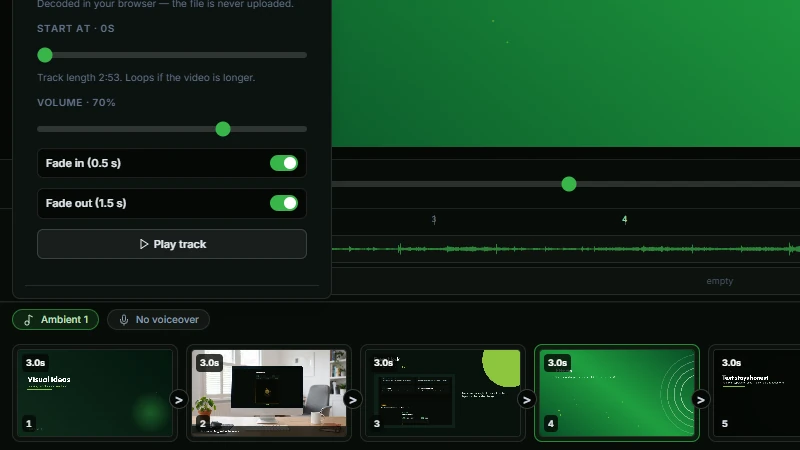
A music bed
The app ships with two ambient tracks you can use in your own videos. Pick one, set where it starts in the track, set the volume and let it loop under the whole video. Fades at the start and the end keep it from beginning and stopping abruptly.
You can also upload your own music file. The file stays on your PC and is never sent anywhere. If you use a commercial track, make sure you have the right to use it on the platform you are posting to.
Voiceover
A voiceover is usually the fastest way to make a demo understandable: record the narration in whatever app you use, then upload it. Visual Ideas takes one voiceover track for the whole video — not a clip per slide — with its own volume and a start point on the timeline.
When the voice is playing, the music can duck automatically: the ambient track drops to 30% under the voice and comes back with short fades. That keeps the words on top without you automating anything.
Sound effects with a place
Slide sounds are short effects attached to one slide: a click when a button is pressed, a whoosh on a transition, a pop when a number counts up. Each one has its own delay, volume and “stop at slide end”, and it moves with the slide when you reorder the video.
A small CC0 library ships with the app — transitions, UI clicks, emphasis hits and ticks. Resist filling every transition: two or three well-placed effects in a thirty-second video do more than a constant stream.
How to use it
- 1
Open the music controls and choose one of the two ambient tracks, or upload your own file.
- 2
Set the volume, the start point and the fades.
- 3
Upload your voiceover as one track, set where it starts and turn on ducking if you want the music lower under it.
- 4
Add a slide sound where the action happens, then set its delay and volume.
- 5
Play the video once at full volume and once quietly — both mixes should still make sense.
Get Visual Ideas for Windows
Free with 10 exports a calendar month, no account, and nothing leaves your PC. Larger export packs are bought once in the app and never expire.