
Animation, timing and layers
Decide what arrives, when, and what sits on top.
Two things make a frame readable: what is on top of what, and what happens in what order. Visual Ideas gives you both per block — a layer position and a small set of animation controls — without turning the editor into a keyframe tool.
The result is a video that assembles itself. The background arrives, then the picture, then the title, then the line that explains it. Nothing overlaps that should not, and nothing appears before the viewer is ready.
Entrances, loops and exits
An entrance is how a block enters the frame: fade, slide, zoom in, pop, blur in, a typewriter reveal for text, a drawn stroke for an icon, a wipe for a picture. “Appear at” sets when it starts and the duration sets how long the movement takes, so a single block can wait while the rest of the slide settles.
A loop is what a block does while it is on screen — a slow float, a pulse, a rotation, a wiggle, a shine across a logo. Use it sparingly: one moving element per frame is usually enough.
“Disappear at” sets when an exit begins, with its own exit animation, so the frame empties cleanly instead of being cut off mid-motion.
Timing that reads
The most common mistake in short video is text that appears and disappears faster than it can be read. As a working rule, a line of five or six words needs about a second after it has finished animating before the viewer has taken it in; a longer line needs more.
Slide duration, entrance delay and animation length are three separate numbers, and that is deliberate. You can keep a slide on screen for five seconds while the title arrives after half a second and stays for the rest of it.
Layers and stacking
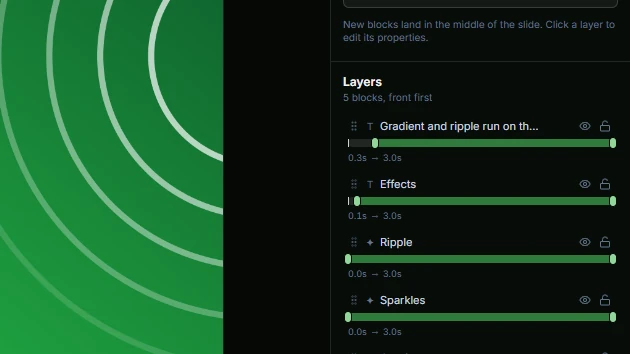
Every block has a position in the stack. The layers panel lists the current slide from front to back, so the thing you can see is the thing at the top of the list, and its visibility bars drag the same Appear at and Disappear at values with the slide playhead shown. Drag a row to move a block forward or back, or use the keyboard shortcuts while the stage has focus.
Layers also solve the ordinary problems: a caption that must sit above a picture, a colour panel that must sit behind text, a logo that must not be covered by a wipe. Hide a block to try the frame without it; the export follows the same rules, so a hidden block is not in the file either.
How to use it
- 1
Select a block and open its entrance settings.
- 2
Choose an animation, then set its delay and duration.
- 3
Set the slide duration long enough for the last element to be read.
- 4
Open the layers panel and drag rows until the frame reads correctly.
- 5
Add a loop only where it helps, such as a logo shine or a slow background drift.
Get Visual Ideas for Windows
Free with 10 exports a calendar month, no account, and nothing leaves your PC. Larger export packs are bought once in the app and never expire.