
Brand profiles
Set the colours and the logo once, reuse them everywhere.
A series of videos is recognisable because of what stays the same: the green, the typeface, the logo in the corner. Rebuilding that for every clip is the tedious part of making a second video.
A brand profile is that set of decisions saved once. Apply it to a new project and the colours and the logo come with it; the content is still yours to write.
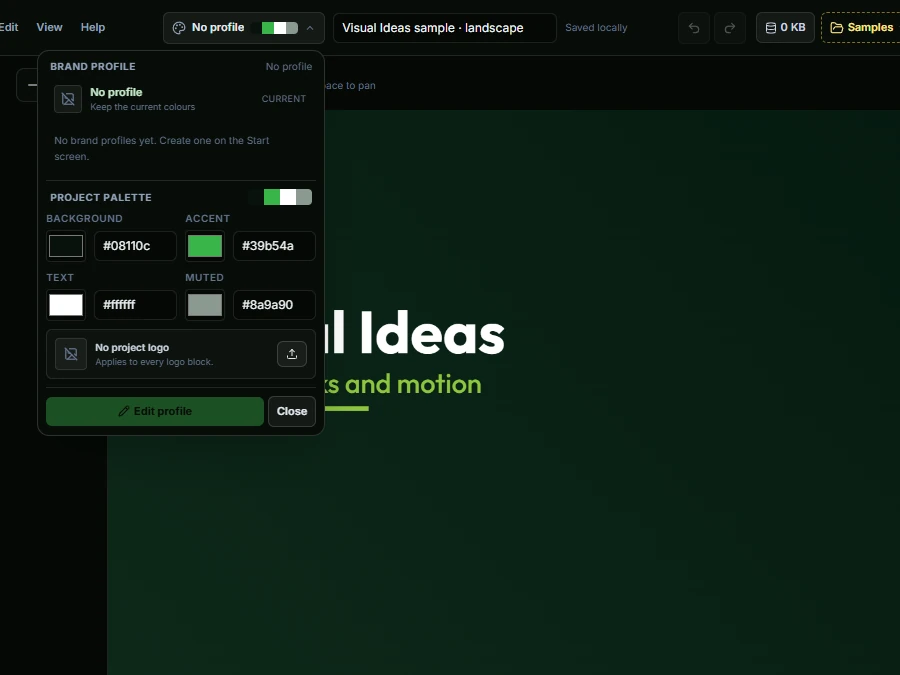
What a profile holds
A profile holds a name, four palette colours and a logo. Blocks can use the project colours by name instead of a fixed hex value, so changing a colour repaints every block that uses it.
That is the difference between a layout that looks like a brand and one that is the brand: you edit one value and the whole project follows.
- Four palette slots: background, accent, text and muted
- A logo copied into the project, used by every logo block
- Create, duplicate, edit and delete profiles; a new project asks which one to use, or No profile
- Applying a profile copies its palette and logo into that project, so later edits never change old videos
Keeping a series consistent
If you post weekly, the profile is what makes the series feel like a series. Keep the same accent colour for the same kind of claim, the same position for the logo, and the same type sizes. The viewer may not notice consciously, but they will recognise the next video before they read the title.
The profile does not lock the layout. A launch video and a tutorial can share a palette and a logo and still look completely different, because the content and the composition are separate decisions.
When the brand changes
Change a palette colour in the project and every block using it updates at once — useful when a product gets a new look, or when you make a version of the same video for a partner. Nothing is baked into the file until you export it, so trying a second palette costs one edit.
How to use it
- 1
Open the profile picker on a new project and choose a profile, or No profile to use the default colours.
- 2
Set the four colours, and upload the logo once; every logo block can then use the project logo.
- 3
Duplicating a profile is the quickest way to make a variant without rebuilding it.
- 4
Apply the profile to a new project before adding content, so the blocks are built on the palette.
- 5
Change one colour and check that the whole video still reads.
Get Visual Ideas for Windows
Free with 10 exports a calendar month, no account, and nothing leaves your PC. Larger export packs are bought once in the app and never expire.