
Avatar and lower thirds
A face and a name, without a second edit.
A lower third is the small bar at the bottom of the frame that tells the viewer who is talking. It is a convention for a reason: it answers the question the viewer is already asking, without interrupting the video.
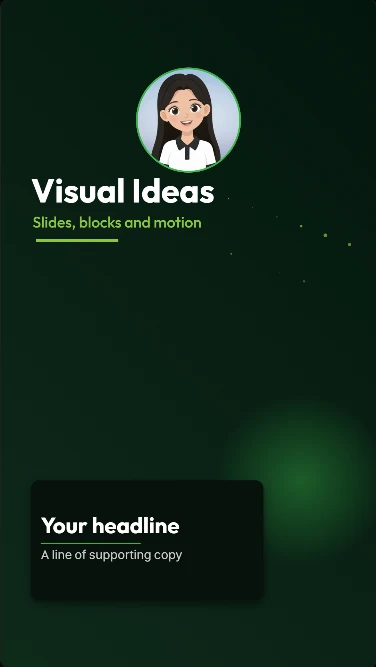
Visual Ideas ships two blocks for this: an Avatar, a round presenter clip you upload, and a Lower third with a name and a title. Both are ordinary blocks: place them, colour them and time them like anything else on the slide.
The avatar
An avatar block is an uploaded clip drawn in a circle, with an optional ring and its own ring colour and width. It uses the same framing controls as a picture, so you can zoom and pan inside the circle, and it loops when the slide is longer than the clip.
Use a presenter clip on a plain background, or a logo when the video is from a company rather than a person. The clip is muted by default; “Keep clip audio” plays its sound instead.
The lower third
The lower third block holds two lines — a person name and a title — on a coloured bar, with its own text colour and an accent colour for the detail. Place it low in the frame and give it an entrance and an exit like any other block.
The bar needs contrast against whatever is behind it. A solid colour from the palette, or a dark panel, is more reliable than white text straight onto footage.
- Name and title, styled separately
- Fill, text and accent colours
- Entrance and exit timed with the slide
- Pairs with the avatar block when the speaker is on screen
Callouts and badges
Two more content blocks do a similar job. A Callout draws an arrow to a point in the frame and puts a label beside it, so you can point at a button without drawing on the screenshot. A Badge is a short label — NEW, −30%, BETA — on a rotated rounded rectangle.
Both are worth using once: a callout that points at everything points at nothing.
How to use it
- 1
Add a slide with the portrait or the quote.
- 2
Add an Avatar block and upload the presenter clip; turn the ring on if the background is busy.
- 3
Add a Lower third and fill in the name and the title.
- 4
Set the fill, text and accent colours from the brand palette.
- 5
Time the entrance so the name arrives after the face, and the exit before the slide changes.
Get Visual Ideas for Windows
Free with 10 exports a calendar month, no account, and nothing leaves your PC. Larger export packs are bought once in the app and never expire.