
A slide has two lengths: the time it is on screen and the time it is readable. The first is a number in the editor. The second is what the viewer experiences, and it is always shorter.
Most rushed videos are not too fast overall. They are made of slides that are individually too short for the amount of content on them.
Start with a reading estimate
A rough but useful formula:
- A title or a five-word line needs about 1 second of stillness.
- A 10-12 word sentence needs about 2 seconds.
- A paragraph of three lines needs about 3 seconds.
- A dense settings screen or a list of steps needs longer, because the viewer is searching as well as reading.
Add the entrance time. If the text fades in over half a second, the reading clock starts when the fade ends, not when the slide starts.
Add the exit and the transition. If the slide fades out over 0.4 seconds and the next one fades in over 0.4 seconds, the viewer has about half a second where neither frame is fully readable. Build that into the budget.
Use a simple working method
For each slide, do this:
- Read the text aloud at a normal pace.
- Count the seconds it took.
- Add one second for the eye to land.
- Add the entrance and exit time.
- Round up.
That is the minimum. If the slide has several elements, add another beat between them.
A 5-second slide with a title and a caption is comfortable. A 3-second slide with a title, a caption, a picture and a counter is not, even though the words are short.
Give different slides different lengths
A uniform slide duration is the most common mistake. A title card can be 2 seconds. A demonstration may need 6. A dense list may need 8. A closing frame may need 4 so the call to action can be read.
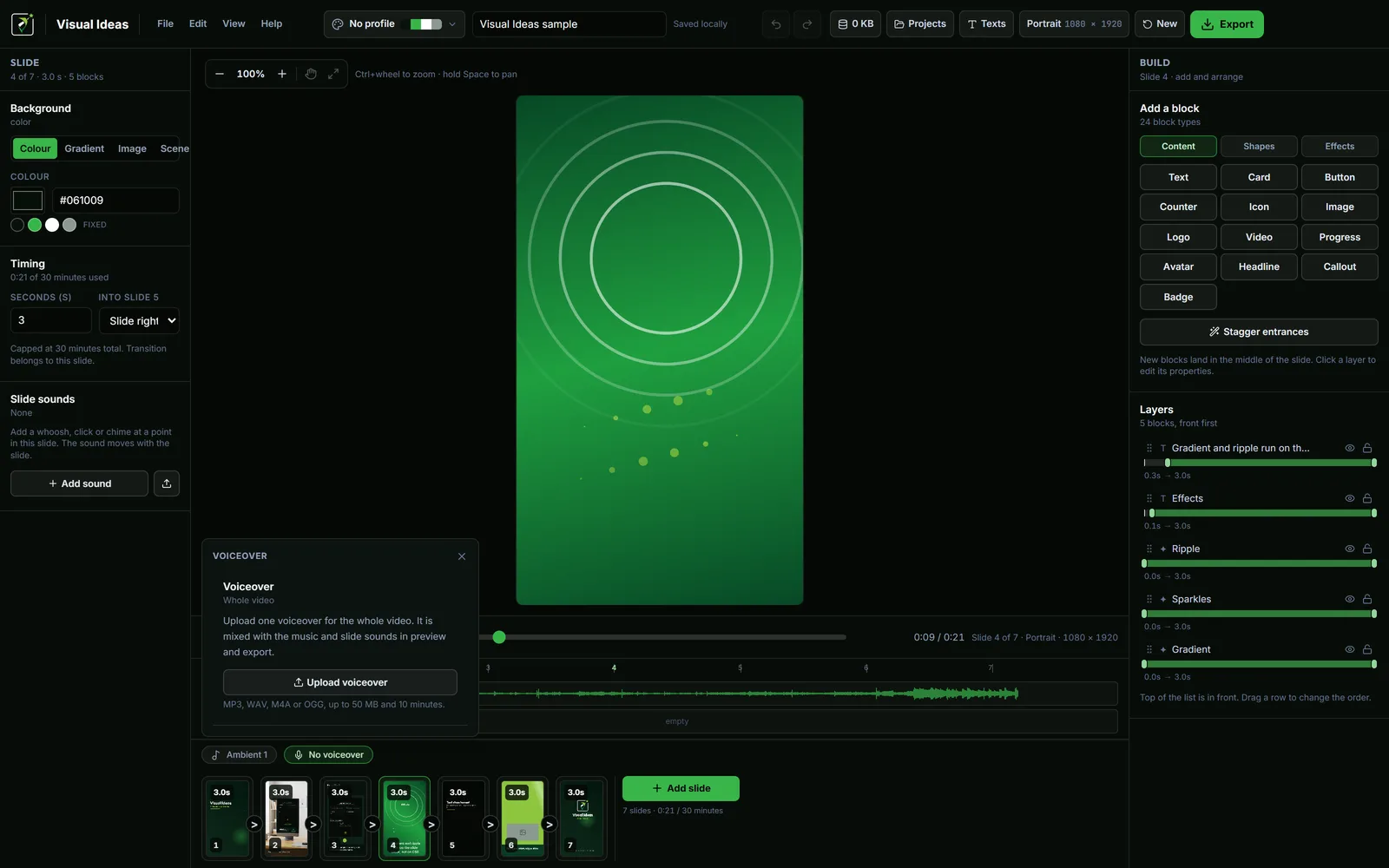
Visual Ideas sets duration per slide, so there is no reason to keep them equal. The bottom strip shows each slide's length, which makes an uneven sequence easy to see and adjust.
If every slide is 3 seconds, the video feels mechanical. If the lengths follow the content, it feels paced.
Match narration to the slide
If there is a voiceover, the slide has to last as long as the sentence that belongs to it. A slide can be shorter than the sentence only if the narration continues over the next visual, which is a deliberate overlap.
The practical approach is to record the voice first and cut the slides to it, rather than stretching the voice to fit arbitrary slide lengths. The voiceover guide covers recording and mixing.
If there is no narration, the text and the visual set the pace. Read the slide as a viewer would.
Treat animation as part of the content
An entrance is not free time. A typewriter line takes as long to write as it takes, and the viewer cannot read the whole line until it finishes. A counter is not readable until it stops. A wipe reveals the picture, but the viewer may need another beat to understand it.
If an animation is longer than half a second, count it against the slide's budget. If it is longer than a second, ask whether it is worth the reading time.
The timing animations guide goes through the entrance types and a worked five-second example.
Let the viewer pause if they need to
A video is not a live lecture. The viewer can pause, rewind or screenshot. That does not excuse a rushed slide, because most viewers will not pause; they will simply miss the detail and move on.
For a tutorial or a technical demo, assume the viewer will pause. Leave the important state on screen long enough to copy, and avoid covering it with an animation.
Review at normal speed, not frame by frame
Scrubbing through the timeline hides timing problems. Watch the sequence at normal speed, in one pass, as a viewer would. Note the moments where you want to rewind or where you lose track.
Those notes are the slides to lengthen. Do not adjust the whole video; adjust the specific slide.
Then watch it on a phone. A slide that feels comfortable on a desktop monitor can feel slow or cramped at phone size, because the eye has less room and the interface takes more of the frame.
Keep a timing pattern
Once a few videos work, the durations become a pattern: a 2-second title, a 5-second demonstration, a 3-second detail, a 4-second close. Reusing that pattern makes the next video faster to build and gives the series a consistent rhythm.
The pattern is a starting point, not a rule. A dense slide still gets the time it needs.
A slide is finished when the viewer has read it, not when the editor has run out of seconds.

Cristian Istrate
Independent developer behind Visual Ideas, a video editor for Windows. I write these notes when a problem keeps coming back in support email. Get in touch.