
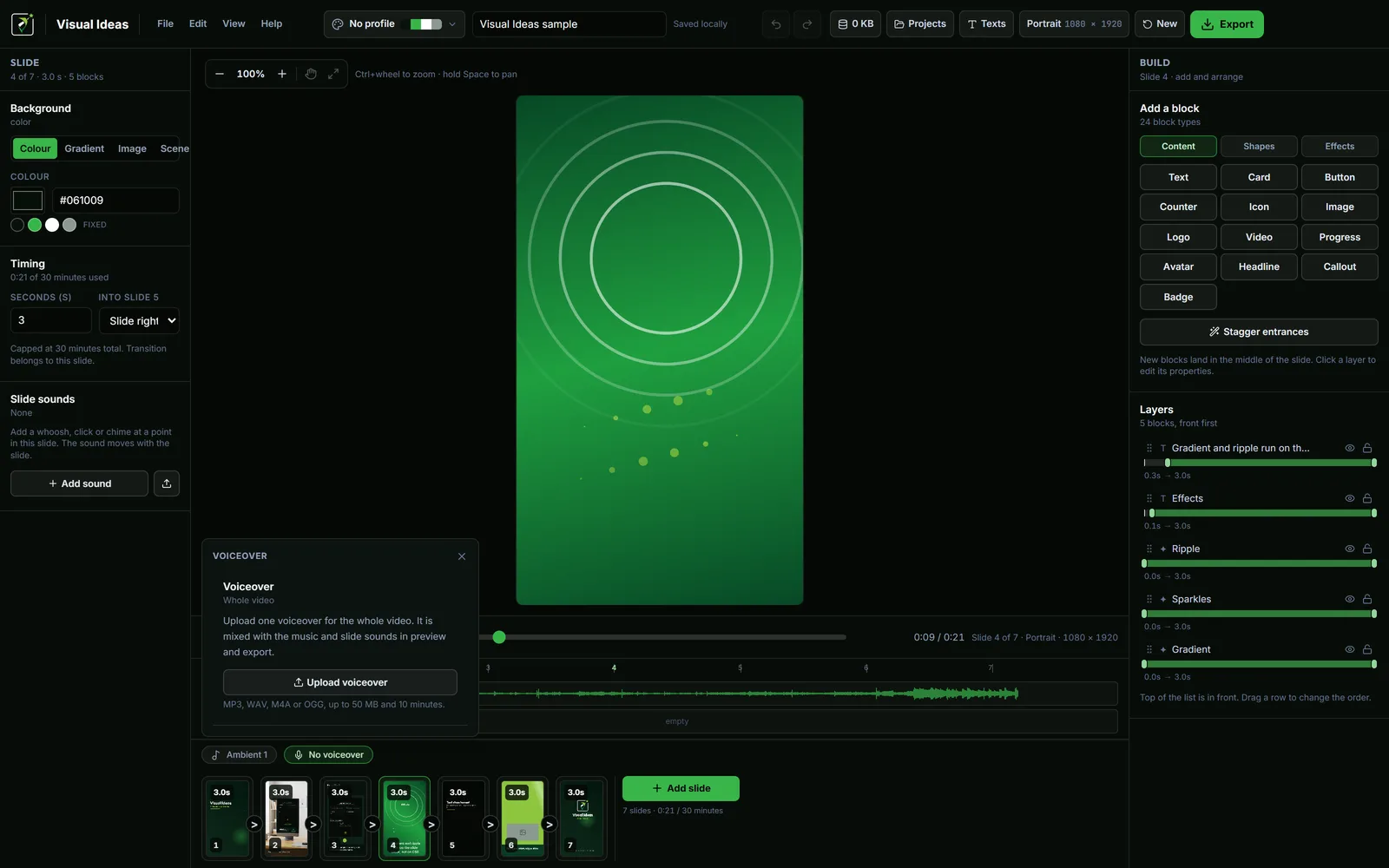
A slide can hold a title for five seconds and still be unreadable, because the title spent four of those seconds arriving. Timing is not how long a slide is on screen; it is how long the words are legible after they have finished moving.
That distinction fixes most of the timing problems people have with short video.
Three numbers, not one
Every block has three separate timings, and they are easy to confuse:
- Appear at — the moment in the slide when the block starts to enter.
- The entrance length — how long the movement takes once it starts.
- Disappear at — the moment the exit begins.
A slide's own duration wraps all three. If the slide is four seconds long and the title appears at one second with a half-second fade, the title is fully visible for two and a half seconds, and then the slide changes. That may be enough. If the slide is two seconds long, it is not.
Reading speed is slower than you think
Silent reading is fast, but reading while watching is not. As a working rule, a short line — five or six words — needs about a second after it has finished animating before a viewer has taken it in. A line of ten to twelve words needs closer to two seconds. A sentence that wraps to three lines needs three.
Those numbers assume the viewer is already looking at the right part of the frame. If the previous slide just disappeared, add a beat for the eye to move.
This is why the same sentence can feel slow in a document and rushed in a video. The video is competing with everything else on the screen. The slide timing guide turns these estimates into a repeatable calculation.
Build the hold, then the movement
A useful order:
- Set the slide duration to the reading time you think the line needs.
- Give the block a short entrance — 0.4 to 0.6 seconds is enough for a fade or a small slide.
- Set Appear at to zero if the line is the first thing the viewer should see.
- Leave the rest as hold. Do not fill it with another animation.
If the line still feels rushed, the answer is usually a longer slide, not a faster animation. Animation cannot buy reading time.
Stagger, but not too much
When a slide has a title and a caption, letting the title arrive first and the caption follow half a second later reads better than both appearing at once. It gives the eye an order. The Stagger entrances button in the block picker does this for every block on the slide in one click.
The mistake is staggering by two or three seconds. By the time the caption arrives, the viewer has read the title and is waiting, and the slide feels slow even though each element is quick.
A stagger of 0.2 to 0.4 seconds is usually enough. The same applies to a list: four items arriving 0.15 seconds apart feel like a sequence; four items arriving a second apart feel like a queue.
Entrances that take time to finish
Some entrances are naturally slow. Typewriter text reveals letter by letter; a drawn icon traces its strokes; a wipe uncovers a picture. Each is charming once and expensive twice.
If you use one, count its full duration as part of the reading time, not as a decoration before it. A typewriter line that takes two seconds to write needs two more seconds to be read. On a six-second slide that is most of the budget.
The same goes for a counter that counts up: the number is not readable until it stops.
Exits are part of the budget
An exit does not need to be long, but it does need to finish before the transition starts, or the two movements overlap and the frame looks broken. A short fade or a small slide out is enough.
Disappear at is also how you clear the frame for something else. If a caption must go before the next idea arrives, set Disappear at early in the slide and let the rest of the frame breathe. That is often better than letting everything leave at once.
One detail worth knowing: setting an exit time while the exit animation is None means the block hides at that moment. It is a hard cut, not an animation.
A five-second slide, timed
A practical example, portrait, one sentence and one picture:
- Slide duration: 5 seconds.
- Picture: Appear at 0, fade in over 0.5 seconds.
- Title: Appear at 0.2, slide up over 0.5 seconds.
- Caption: Appear at 0.6, fade in over 0.4 seconds.
- Everything holds until 4.6, then fades out over 0.4 seconds.
The viewer sees the picture, reads the title, reads the caption, and the slide empties before the transition. Nothing overlaps and nothing is cut off.
The check that catches everything
Play the slide once with your hand off the keyboard, as a viewer would. If you find yourself waiting, it is too slow. If you find yourself re-reading, it is too fast. If you cannot remember what the caption said, it was on screen for less time than you thought.
Adjust one number at a time, and watch it again. Timing is one of the few parts of editing where the preview really does tell you the truth.

Cristian Istrate
Independent developer behind Visual Ideas, a video editor for Windows. I write these notes when a problem keeps coming back in support email. Get in touch.