
Device scenes
Put a real screen inside a real device.
A product demo is more convincing when the product is shown on the device people will use it on. A recording floating on a coloured background looks like a slide; the same recording inside a laptop or a phone looks like the thing itself.
Device scenes are ready-made photographs of a laptop, a tablet or a phone with the screen cut out. Drop your recording or screenshot in and Visual Ideas fits it into that hole, keeping the bezel on top.
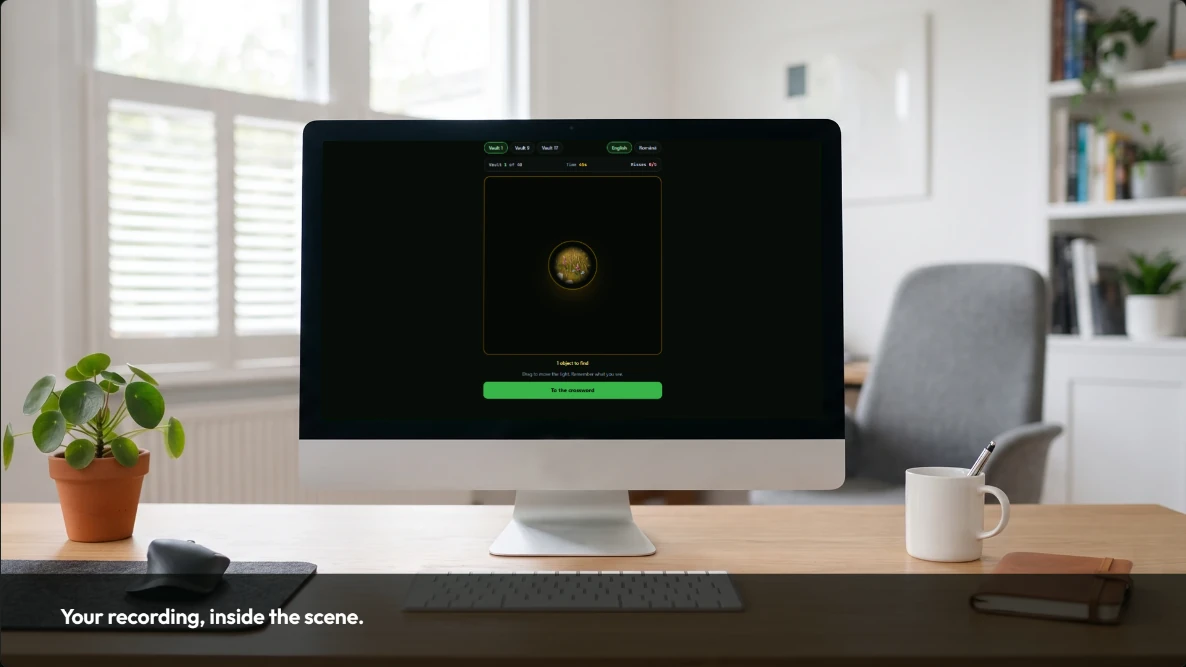
What goes into the screen
A scene accepts a video or a full-page screenshot. Video is the obvious choice for a demo: capture the app or the website once with your own screen recorder, upload the file, then trim to the part that matters and set the playback speed.
A screenshot is the better choice for a long page. Point the scene at a full-page capture and the app scrolls it from top to bottom over the slide, with a short hold at each end so the viewer can read the first and last screen.
- Trim the recording and play it at normal speed or faster
- Keep the recording sound or mute it
- Scroll a tall screenshot at a fixed speed or across the whole slide
- Fit, fill or anchor the content to the top of the screen
Composition without a 3D tool
The scenes are photographs, not 3D models. The screen is a quadrilateral, and the content is warped into it with a perspective transform, so an angled laptop still looks like an angled laptop. That is enough for the shot to read correctly without opening a modelling application.
Because the device is part of the scene, the rest of the frame is yours: a headline beside the laptop, a logo in the corner, an arrow pointing at the thing you want noticed.
When not to use a device
A phone frame around a screen recording is honest only if the product really runs there. If you are showing a desktop tool, use the laptop scene. If the point is a full-bleed screenshot, skip the device and let the interface fill the frame.
You can also place a video as an ordinary block instead of inside a scene, with its own rounded corners and shadow. That is the right choice when the device would only be decoration.
How to use it
- 1
Add a slide and open the scene picker.
- 2
Choose the device that matches the product: laptop, tablet or phone, in the project’s frame size.
- 3
Upload a recording, or choose a full-page screenshot, as the screen content.
- 4
Trim the clip, or set the scroll speed for a tall screenshot.
- 5
Adjust the framing if the important part of the screen is not centred, then add the headline beside it.
Get Visual Ideas for Windows
Free with 10 exports a calendar month, no account, and nothing leaves your PC. Larger export packs are bought once in the app and never expire.