
A screen recording captures what happened. A software demo explains why it matters. The difference is not the recorder or the editor; it is the preparation before either one starts.
This is the routine that turns a raw capture into something a customer can follow in under a minute.
Prepare the account, not the script
The best demo recordings look boring to make. Before you record:
- Create a demo account with realistic but fictional data.
- Close email, chat, notifications and every unrelated tab.
- Set the browser or app to a readable zoom level.
- Decide the one task you are demonstrating.
That last point is the one people skip. "Show the dashboard" is not a task. "Create a task, assign a date and find it in the project view" is a task. A task has a starting state, an action and a visible result.
Write the task in one sentence. If the sentence needs "and then" twice, you have two videos.
Record the task once, slowly
Use whatever recorder you already use. Visual Ideas is the editor: it does not record the screen, camera or microphone, so the capture happens somewhere else.
Record the task from the beginning to the visible result. Move the pointer deliberately, leave a beat after each state change, and do not talk over the recording. If you make a mistake, stop and start again — a clean take is faster than repairing a messy one.
Keep the raw clip short. Thirty to forty seconds is usually enough for one task. If the workflow needs longer, split it into two clips and two scenes.
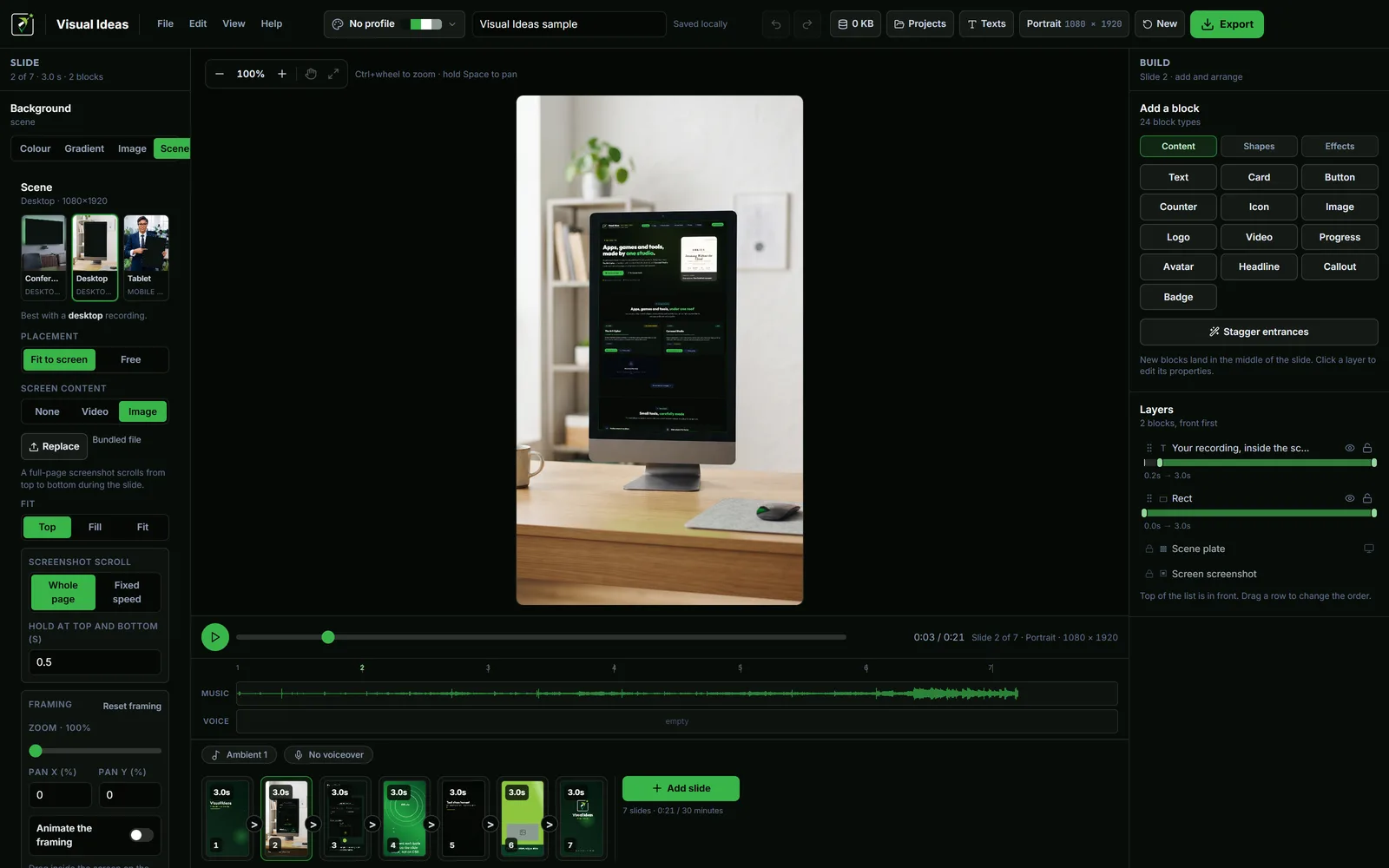
If the product is a website and the point is the page layout, a full-page screenshot may be better than a recording. It can scroll from top to bottom over one slide and hold at each end.
Cut to the moments that matter
A raw capture contains waiting, loading, mouse wandering and setup. Remove all of it. The viewer needs to see:
- The starting state.
- The action that changes it.
- The result.
Anything that does not serve those three beats is dead time. Speed up a long import instead of cutting it out entirely; the viewer should understand that time passed, not watch it pass.
A long flow can become several slides, each with one state. That is easier to follow than one four-minute recording, and it lets each caption explain one decision.
Give the capture a context
A recording inside a device scene reads as a product. A recording on a flat background reads as a slide. Visual Ideas includes conference, desktop and tablet scenes in portrait and landscape, and an uploaded recording is warped into the screen cut-out so the bezel stays in front.
Match the device to the product:
- A desktop tool belongs in a desktop scene.
- A mobile interface can use the tablet scene, which keeps more of the screen visible than a smaller frame.
- A tablet scene is useful when the interface is the point and a desktop frame would shrink it.
The device mockup guide covers fit, framing and readable scale. One rule to remember: placing a capture in a device does not make small text bigger. Record at a readable scale first.
Add labels, not a tour
Each scene should carry one short label that says what the viewer is looking at or what to notice. "Filter by client" is a useful label. "The client filter is in the top right" is not; the viewer can see where it is.
Keep labels in the same position between slides so the eye does not have to search. Use one type size and one accent colour. If a label needs more than two lines on a phone, split the idea across two slides.
A voiceover is optional. If you use one, write it as one sentence per slide and upload it as a single track. Turn on music ducking if there is music underneath. The voiceover and music guide covers the levels.
Review the sequence without sound
Play the finished sequence with the audio off. If you can still tell what changed on screen, the visuals are doing their job. If not, the fix is a clearer state change or a better label, not more narration.
Then play it at phone size. A capture that is readable on a 27-inch monitor can become a grey rectangle on a phone. If the interface text disappears, record at a larger scale or crop to the part that matters.
Export and keep the recipe
Export the MP4 at 1080p and 30 fps for most software demos. Landscape is the safe default for a desk-based audience; portrait works when the demo is going to Reels, TikTok or Shorts, but the interface needs a purpose-built composition rather than a squeezed landscape capture.
Save the project folder. The next demo can reuse the device scene, the label style and the timing, and only the recording and the task change. That is how a team produces a demo per feature without starting from a blank project every time.
If you have not planned the story yet, start with planning a short product demo. If the workflow is a tutorial rather than a demo, the step-by-step tutorial guide uses the same capture with a different structure.
Cristian Istrate
Independent developer behind Visual Ideas, a video editor for Windows. I write these notes when a problem keeps coming back in support email. Get in touch.