
A written tutorial can be read at the reader's pace. A video cannot. If a step disappears before the viewer has followed it, the tutorial has failed even if every instruction was correct.
The fix is structural: fewer steps per scene, one action per step, and enough stillness after each change for the viewer to copy it.
Start from the task, not the tool
Write the finished task first: "Export a deck as a PDF", "Set up a new client folder", "Replace a bike chain". Then write the steps a person actually performs, in order.
A tutorial is not a feature tour. You do not need to explain every setting on the screen; you need to get the viewer from the starting state to the finished result without getting lost. Optional settings belong in a note or a second video.
If the task takes more than about eight steps, split it into two tutorials. "Part one" and "part two" are easier to follow than one long scroll.
Give every step a visible state change
Each step should produce something the viewer can see: a menu opens, a field fills, a file appears, a part clicks into place. If a step does not change anything visible, it may be an explanation rather than an action.
Show the starting state for a beat, perform the action, then hold on the result. That hold is the part most tutorials cut too early. A viewer who is looking at their own screen needs a moment to look back and confirm they are in the same place.
Where a click is easy to miss, add a short label or an arrow. Do not explain every click; explain the decisions.
Use one scene per step
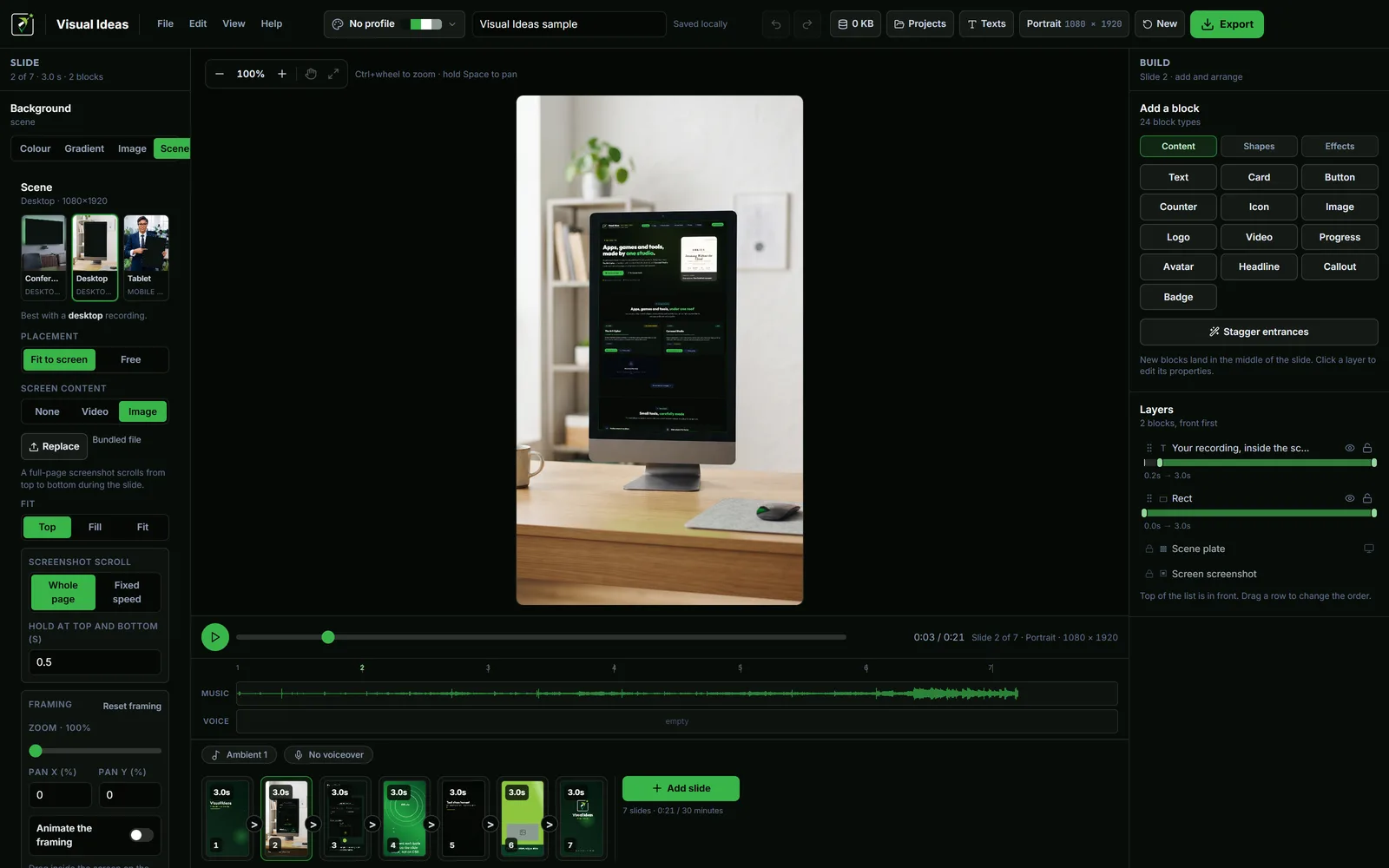
In Visual Ideas, a step is a slide. The slide can hold:
- A screen recording or screenshot of the step.
- A short title that names the action.
- A caption that explains why it matters.
- A callout or arrow pointing at the relevant control.
One step per slide keeps the sequence editable. If step four changes, you replace one scene, not the whole timeline. It also makes the video easier to follow, because the viewer sees one state at a time.
If a step needs two views — the setting and the result — split it into two slides. A split screen is harder to read on a phone.
Put the instruction where the eye is
A caption at the bottom of the frame is easy to miss when the action is at the top. Place the label near the thing it describes, or use a callout that points at it. Keep the label short: "Choose PDF" is enough.
If the same kind of step repeats, keep the label in the same position. Consistency lets the viewer stop searching for the instruction and concentrate on the action.
For screen recordings, read the device mockup guide before you place the capture. A recording fitted into a desktop or tablet scene reads as a real product; the same recording floating on a background reads as a slide.
Decide whether to narrate
A voiceover can explain the reason behind a step, which text often cannot. It also makes the video harder to follow with the sound off.
A good compromise is to keep the essential instruction on screen and use narration for context: "This matters because the PDF keeps the links clickable." That way the silent viewer can complete the task and the listening viewer understands why.
If you use narration, upload one track for the whole video, set its start point and turn on ducking if there is music. The voiceover guide covers the mix.
Time the steps for a viewer with their hands full
Reading speed is not the only constraint in a tutorial. The viewer may be switching windows, holding a tool or waiting for a file to load. Leave more time than feels necessary.
A practical rule: after the action is shown, hold the result for at least two seconds, or longer if the viewer has to reproduce the step. A title can be shorter. A dense settings screen needs longer still.
Do not fill the hold with another animation. The pause is the instruction.
Record the finished run once
Before exporting, follow your own tutorial from the beginning without pausing. If you have to rewind, the viewer will too. If you have to guess which control to use, the video needs a clearer label.
Then watch it on a phone. A screen recording that is readable on a desktop monitor can become a grey rectangle on a phone. If the interface text disappears, record at a larger scale or crop to the relevant area.
Export and keep the recipe
Export at 1080p and 30 fps for most tutorials. Landscape is the natural shape for a desk-based tutorial with a screen recording; portrait works for a phone-first audience, but the interface needs a purpose-built layout rather than a squeezed landscape capture.
Save the project folder. The next tutorial in the series can reuse the title style, the caption position and the device scene. Only the steps and the recording change.
For the demo version of the same workflow, making a software demo from a screen recording shows how to turn the capture into a product story instead of a lesson.

Cristian Istrate
Independent developer behind Visual Ideas, a video editor for Windows. I write these notes when a problem keeps coming back in support email. Get in touch.