
A long recording is a library of short videos that nobody has indexed. The work is not cutting it into pieces; it is finding the moments that make sense on their own and giving each one a beginning that a new viewer can understand.
A clip that starts mid-sentence and ends before the point is not a short video. It is a fragment with a view count.
Find complete ideas, not timestamps
Watch the recording once without editing. Mark moments that have a clear beginning, middle and end:
- A question and its answer.
- A demonstration with a visible result.
- A mistake and its correction.
- A story with a lesson.
- A concrete number or rule that can stand alone.
Ignore anything that depends on the previous ten minutes. A useful clip can be understood by someone who never saw the webinar.
Write one sentence for each candidate: "This clip explains why the first export looked dark." If you cannot write the sentence, the moment is not ready.
Give the clip a new opening
The source starts in the middle of a context that the original audience already had. The clip needs a new first beat: a title card, a one-line context slide or a short spoken introduction recorded afterwards.
That opening does the same job as a hook. It names the problem and promises the answer. It does not need to recap the whole webinar.
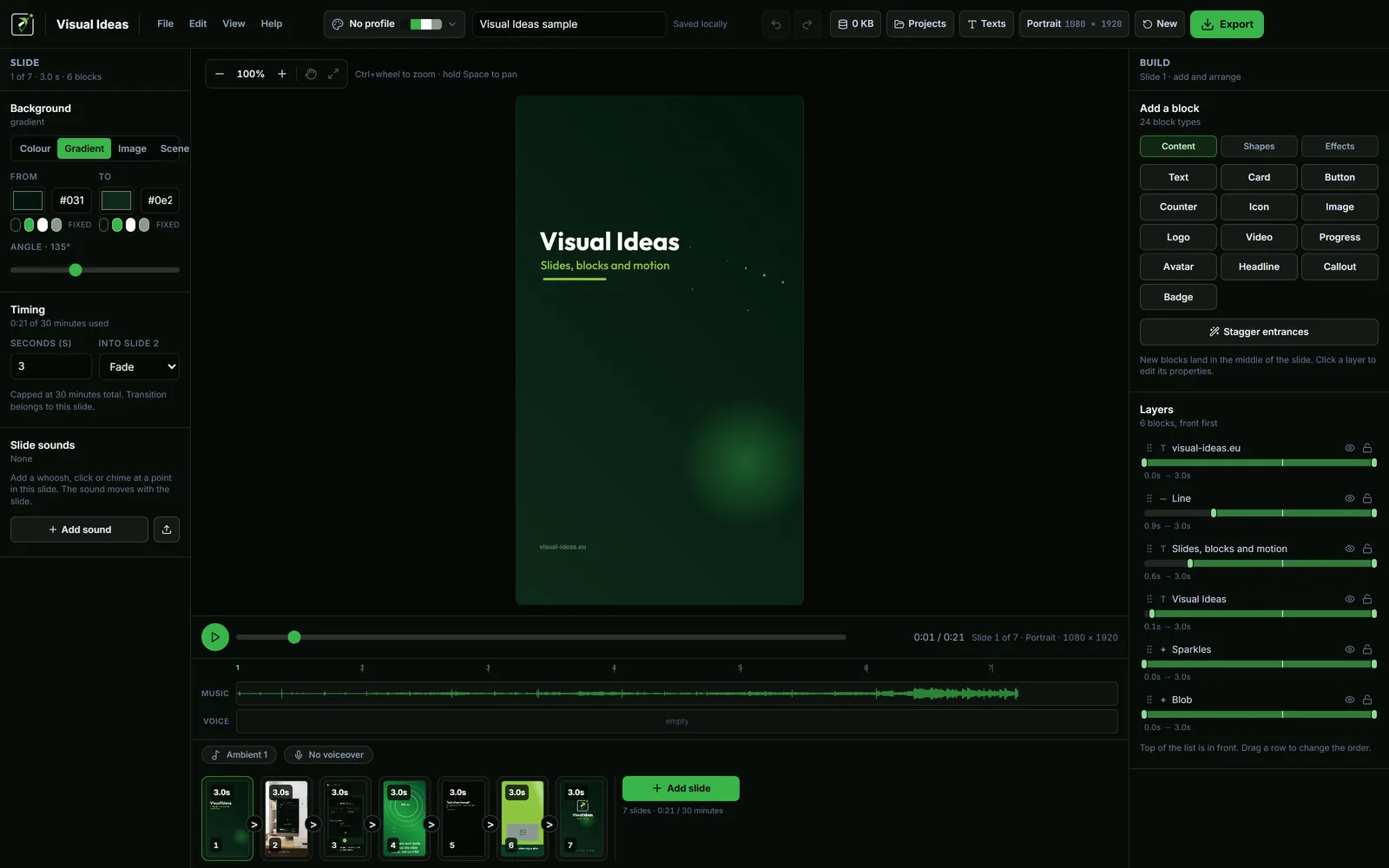
In Visual Ideas, the opening can be a text slide before the clip, or a device scene with the recording already playing. Either way, keep it short. The viewer came for the idea, not the backstory.
Reframe for the destination
A webinar is usually a landscape recording of a person and a slide deck. A vertical feed needs a different composition, not a crop of the same frame.
Three practical options:
- Keep it landscape for YouTube, LinkedIn or a website where the wide frame is expected.
- Build a vertical composition with the speaker or the demo in a device scene and the key line as text.
- Use stills and captions to summarise the idea around a short audio quote.
Do not stretch the webinar to fill a vertical frame. The faces and the slides will both look wrong. The aspect ratio guide covers the shapes and safe areas.
Cut the qualifiers carefully
Removing a pause is fine. Removing a qualifier can change the meaning. If the speaker said "this usually works, unless the file is on a network drive", the clip must keep the exception or avoid the claim.
A clip that misrepresents the speaker is a reputation problem, not just an editing problem. When in doubt, keep the qualifier as a caption or a second slide.
The same applies to guests. Check that you have permission to reuse their voice, face and slides, and that the clip does not put words in their mouth.
Add captions and context
A short clip from a long video often has a dense spoken idea. Captions help viewers follow it with the sound off, and a short text summary helps the ones who scroll.
Keep captions accurate: names, numbers and product terms are the usual casualties. If the speaker says "ten percent", do not caption "twenty".
The LinkedIn sound-off guide covers the caption and contrast rules for a professional feed.
Make a series, not a pile
A long recording can produce five or six clips. That is a series, not a random pile. Give the clips a consistent opening, a consistent caption position and a consistent closing frame, so a viewer who sees two of them recognises the third.
A simple structure for each clip:
- The idea in one line.
- A 20-40 second excerpt or a rebuilt summary.
- One line of context or a caveat.
- A pointer to the full recording where relevant.
That consistency is what turns repurposing into a channel rather than a chore.
Check the audio
A webinar recording often has uneven levels: the speaker is close to the microphone, a question from the audience is distant, a slide change clicks. Normalise what you can and remove what you cannot.
If the source audio is poor, a clip can still work with captions and a music bed, but do not hide a bad recording under loud music. The viewer will hear the problem anyway. The voiceover and music guide covers the mix.
Export and keep the source
Export each clip at the frame and resolution of its destination. Keep the original recording and the clip project folders, so a later correction does not require starting over.
Label the clip files with the idea, not the timestamp: setup-mistake.mp4 is easier to find than webinar-14-32.mp4.
A realistic output
One 40-minute webinar can produce three good clips and two mediocre ones. Publish the three. A smaller set of complete ideas is more useful than a larger set of fragments.
The weekly workflow guide shows how to fit repurposing into a regular production slot, and the slide-based editing guide explains the structure if you are rebuilding the clips rather than cutting them.

Cristian Istrate
Independent developer behind Visual Ideas, a video editor for Windows. I write these notes when a problem keeps coming back in support email. Get in touch.