
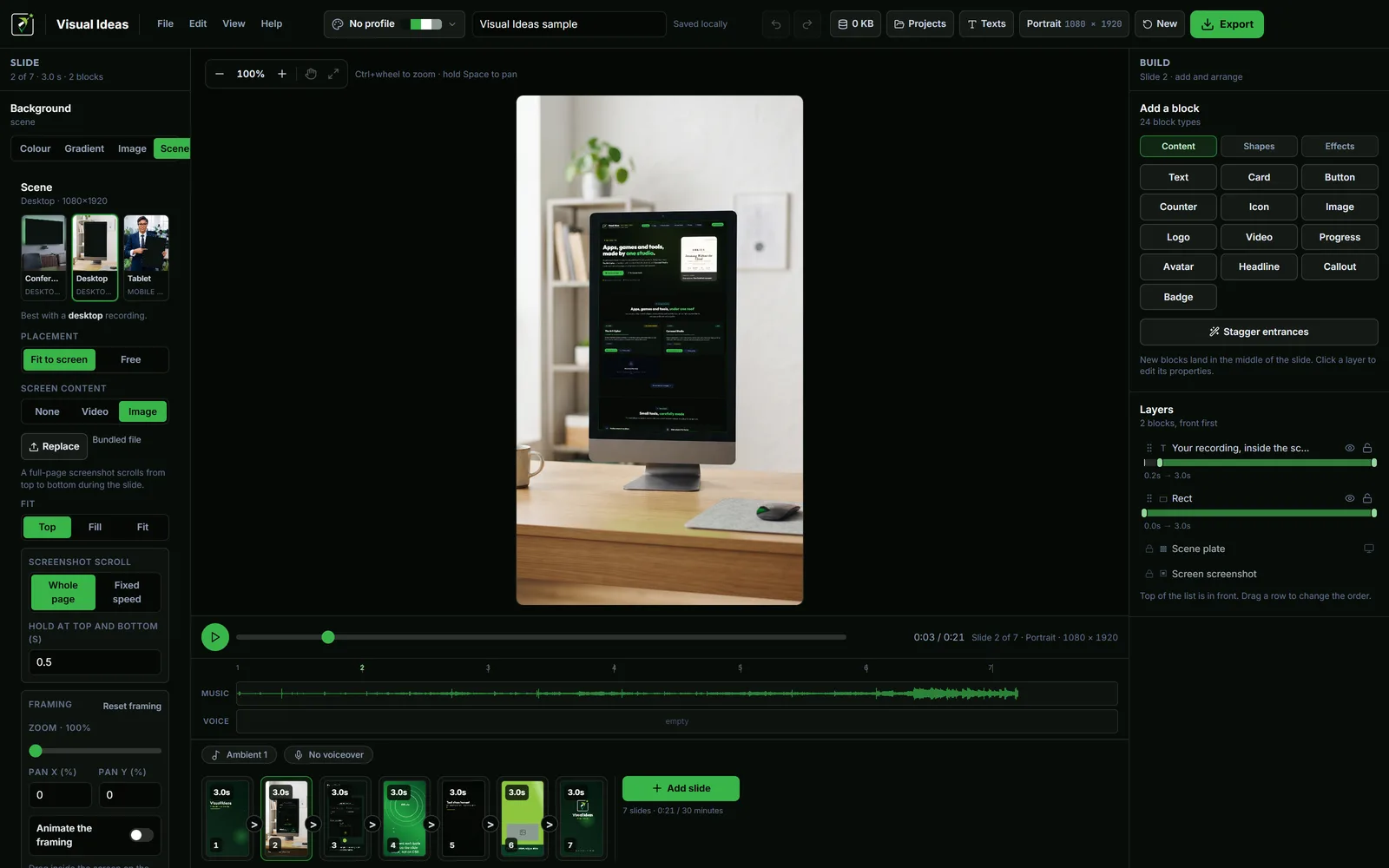
A demo video is not a film. It answers one question — what does this actually do? — and it answers it best with a recording of the product, a device to put it in, and a few lines that say what to notice. You do not need an editing background for that. You need a recording and an order.
This is the shape that works, and it fits in six slides.
1. Capture the flow once
Record the screen with whatever tool you already use — the one built into Windows, OBS, a browser extension. Visual Ideas is the editor, not the recorder: it cannot capture your screen, camera or microphone, and it does not pretend to.
Capture one flow, not the whole application. Pick the moment where the product becomes obvious: the report that builds itself, the form that fills in, the chart that updates when a filter changes.
Keep the recording short. Thirty to forty seconds of raw footage is plenty; you will trim it later. Do not narrate while recording. You will add the words as captions, where they can be read with the sound off — which is how most people will watch it.
If the product is a website rather than a desktop app, a full-page screenshot is often better than a recording. A long page can scroll from top to bottom over one slide, with a short hold at each end so the first and last screen can be read.
2. Put it inside a device
A recording floating on a coloured background looks like a slide. The same recording inside a desktop monitor or a tablet looks like the product. Device scenes are photographs of a device with the screen cut out; your recording is fitted into that hole with the correct perspective, and the bezel stays on top.
Visual Ideas includes ready-made conference, desktop and tablet scenes in portrait and landscape. Match the device to the product. A desktop tool belongs in a desktop scene. A mobile app can use the tablet scene when the interface is the point. The device scenes guide covers the placement details.
You can also place a video as an ordinary block, with rounded corners and a shadow, when a device would only be decoration. But for a demo, the scene does most of the work.
3. Six slides, in this order
Slide 1 — the promise. One line about the outcome, not the feature: "Invoices without the spreadsheet." Under eight words. Two seconds on screen.
Slides 2 to 4 — the flow. One slide per step. A device scene with the recording playing, plus a caption that says what the viewer is looking at. Trim each clip to the part that matters and speed up the waiting. Three steps is enough; five is a manual.
Slide 5 — the result. A still of the finished thing: the report, the invoice, the dashboard. This is the frame people remember, so give it time and keep the text minimal.
Slide 6 — what next. The name and one instruction: try it, book a call, download it. Add the logo and stop.
That is the whole video. Ninety seconds is long for this shape; sixty is comfortable.
4. Write captions that can be read
The most common mistake in a demo is a caption that appears and disappears faster than it can be read. A line of five or six words needs about a second after it has finished animating before the viewer has taken it in. A longer line needs more. The slide timing guide turns that into numbers.
Write the caption as an instruction to look, not a description of the screen: "Filter by client" is better than "The client filter is in the top right". The viewer can see where it is.
Keep the caption in the same position on every slide. The eye should not have to find it again, and the video should feel like one sequence rather than four separate cards.
5. Add sound, carefully
A demo can work in silence. If you add a track, keep it low and instrumental; a busy track fights the captions. The app ships with two ambient tracks that are made for this, or you can upload your own file.
A voiceover is optional, and it is the hardest part to get right. If you use one, write it slide by slide — one sentence per idea — and upload it as a single track for the whole video. If the music is louder than the voice, turn on music ducking: the track drops to about 30 percent under the narration and comes back between sentences.
Do not record a voiceover while clicking through the app. Record it separately, calmly, then place it.
6. Export for the feed it will live in
Decide where the video will be watched before you choose the frame. Portrait suits Reels, TikTok and Shorts; landscape suits YouTube, LinkedIn and a website. The composition changes with the frame, so pick it when you start the project rather than cropping afterwards.
At export time, pick the matching preset. The app sets the resolution, quality and frame rate for that platform, and you can adjust them if you know what you need. 1080p at 30 frames per second is a safe default.
Watch the finished file on a phone before you publish it. A laptop screen flatters small text; a phone tells you the truth.
What you do not need
You do not need a timeline, keyframes, a second monitor or an editor's vocabulary. You need one recording, a device scene, six slides and captions short enough to read. The rest is deciding what the viewer should notice first.
If you want a tighter brief before recording, planning a short product demo is the place to start. The app itself is free to try from the Visual Ideas for Windows page.

Cristian Istrate
Independent developer behind Visual Ideas, a video editor for Windows. I write these notes when a problem keeps coming back in support email. Get in touch.