
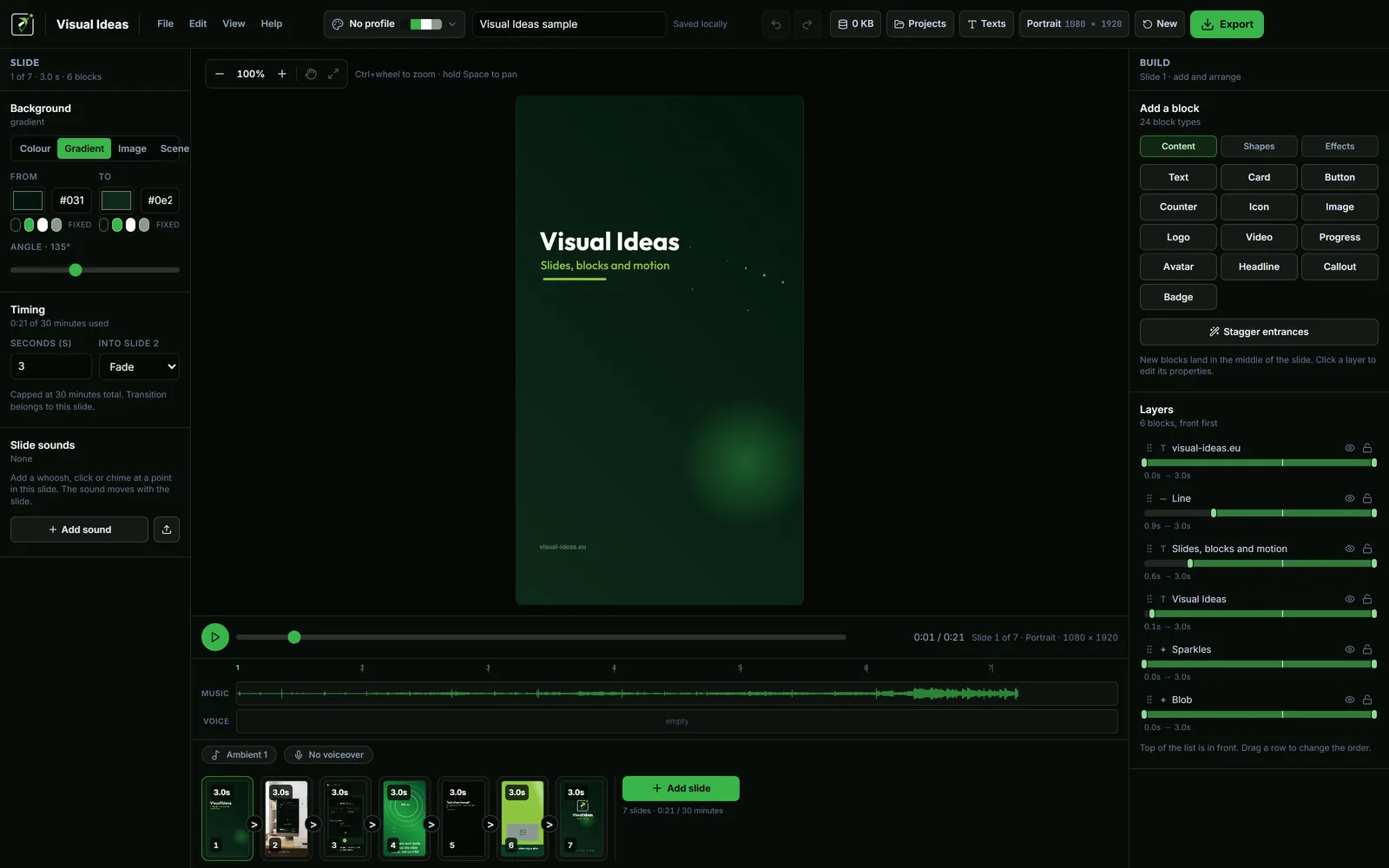
The frame is the first decision in a video, and it is the one most people make last. They edit in whatever shape the editor opened with, then post it somewhere it does not fit — and the platform crops it, letterboxes it, or shows a phone-shaped video with empty bars on a laptop.
Choose the frame before the first slide. It changes the composition, the size of the text and the amount of background around the subject.
The four frames Visual Ideas offers
The app asks for a frame when you start a project, and the choice is fixed for that project: 9:16 portrait (1080 × 1920), 1:1 square (1080 × 1080), 3:4 portrait (1080 × 1440) and 16:9 landscape (1920 × 1080). There is no size toggle later, because moving text and pictures to a new aspect is a redesign, not a switch.
Two of them matter most for social video.
Portrait (9:16) is taller than it is wide. On a phone it fills the screen, which is why it is the default for Reels, TikTok, Shorts, Instagram Stories and most phone-first feeds.
Landscape (16:9) is wider than it is tall. It matches a laptop, a television and a website, and it is still the comfortable shape for YouTube and for most LinkedIn video watched at a desk.
Square (1:1) sits between them and appears in some feeds. It takes less vertical space in a feed than portrait, and it is a reasonable compromise when one file has to work in several places. 3:4 is a slightly taller feed format: more room for a person or a product than square, less extreme than 9:16.
What each platform actually does
- Reels, TikTok, Shorts: portrait. A landscape video is either cropped or shown small in the middle. If you must post landscape here, put the important content in the centre third, because the sides may be covered by interface elements.
- Instagram feed: portrait, 3:4 or square. A 4:5 or 3:4 video appears in the feed with its own frame; a square one takes less vertical space.
- YouTube: landscape. It is watched on a laptop or a television, and the player is built around 16:9. A portrait video on YouTube is a Short, not a normal upload.
- LinkedIn: landscape is the safe choice for a feed video watched at a desk; square works too. Portrait can work when the video is shot on a phone, but it takes more space than the feed expects.
- A website header or a landing page: landscape, because the page is wider than it is tall.
- WhatsApp: portrait or square, usually compressed hard. Keep text large and avoid fine detail; the smaller, cheaper export is often the right one.
Why cropping later is a bad trade
Cropping a finished landscape video into portrait removes the sides. That is where titles, logos and captions usually live, and it is where a screen recording keeps its navigation. You can crop around a subject, but you cannot crop around a layout.
The same is true in reverse: a portrait video placed in a landscape player is either pillarboxed with black bars or cropped top and bottom, and the top and bottom are where the title and the caption are.
Video editors can reframe, but reframing means deciding what to lose for every shot. It is faster to build the video in the right shape. If you need two shapes, make a second project rather than stretching the first.
Text size is the real constraint
A portrait frame is narrow. A line that fits comfortably in landscape will wrap into three lines, and three lines of large type take more vertical space than the frame has. Decide the type size for the frame you chose, not the one you tested on a laptop.
The practical rule: if a caption needs more than two lines at phone size, it is a paragraph, not a caption. Cut it or split it across two slides. The readable Reels text guide has the placement rules.
Resolution and frame rate
Both shapes are exported at 1080p or 720p. 1080p is the safe default: it looks right on a phone and on a laptop, and the platforms re-encode it anyway. 720p is smaller and faster to upload, and for WhatsApp or a slow connection it is often the better choice.
Frame rate is 30, 25 or 24 frames per second. 30 is the smoothest for screen recordings and motion. 25 is the European broadcast rate and is fine for talking-head footage. 24 is the film look, and it is a deliberate choice rather than a default.
You do not need to change either unless you have a reason. The platform preset in the export sheet will pick sensible values.
A simple decision rule
Ask one question: where will someone watch this?
If the answer is "on a phone, scrolling", choose portrait. If it is "at a desk, on a laptop", choose landscape. If it is a feed that shows both, square or 3:4 is the compromise. If you genuinely need two, make two projects — the second one is faster than reframing the first, because the words are already written.
If you really need both
Sometimes you do: a launch video that goes to Reels and to the website. Make the portrait version first, because it is the more constrained one — the narrow frame forces you to cut the copy to what matters. Then make the landscape version from the same words, giving the extra width to the picture rather than to more text.
Do not stretch one composition into the other. A title that fills a portrait frame will look small and lost in landscape, and a wide screenshot that works in landscape will be unreadable when squeezed into portrait. The blocks are the same; the layout is not.
One last thing
The finished video should be watched once on the device it was made for before it is published. A phone flatters nothing: small text disappears, thin lines vanish and a busy background becomes noise. That single viewing catches more problems than any checklist.

Cristian Istrate
Independent developer behind Visual Ideas, a video editor for Windows. I write these notes when a problem keeps coming back in support email. Get in touch.