
Backup and privacy
Your projects stay on your PC.
Video projects contain things you would not put in a public folder: unreleased screenshots, a client’s logo, a recording of an internal tool. Visual Ideas is built so that material never leaves the machine it was edited on.
There is no account, no cloud project and no upload step. You save a project folder, the editor renders the MP4 locally and writes it where you choose.
Where the work lives
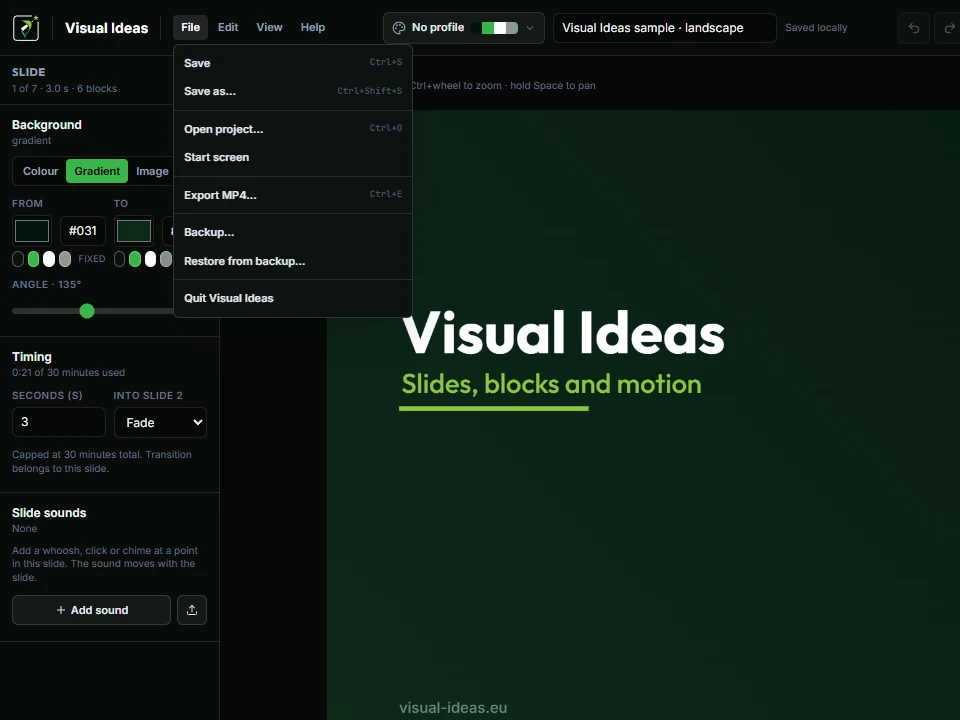
Save writes `project.json` and an `assets/` folder inside the project folder, and copies every upload into it. The folder is the document: copy or move it and it opens on another PC with its media intact.
The editor also keeps a working copy in the app’s own storage so reopening is fast, and a recovery copy of unsaved changes. The project folder is still the thing you back up.
- No account and no sign-in
- Nothing sent to a server: uploads, preview and export all run on your PC
- The project folder contains its own media, so it is self-contained
- A cancelled or failed export leaves the project untouched
A backup you can trust
File → Backup writes one `.vibackup` archive containing your project folders, brand profiles, settings and recovery. It can run on close, daily or weekly, keeps the last few archives, and only writes when something actually changed.
File → Restore lists the projects and profiles inside an archive and restores the ones you pick to a folder you choose. It never overwrites: a restored project becomes “Name (restored)” and a restored profile gets a new id.
Because both are ordinary files, any backup tool you already use understands them as well.
What leaves your PC
The editor does not send me your projects. If you write to support, your message reaches the inbox described on the contact page; if you buy export packs, the purchase is handled by the Microsoft Store under its own privacy terms. The site’s privacy policy lists exactly what the website collects, which is separate from what the editor does.
How to use it
- 1
Save each project into its own folder; Save writes the media beside `project.json`.
- 2
Open File → Backup, choose a folder and a frequency, and let it keep a few archives.
- 3
Use File → Restore when you move to another PC or need an older copy.
- 4
Keep the backup folder inside whatever you already back up.
- 5
Check the privacy page for what the website collects, separately from the app.
Get Visual Ideas for Windows
Free with 10 exports a calendar month, no account, and nothing leaves your PC. Larger export packs are bought once in the app and never expire.